Integrate a survey form into your website without coding
Created: 29/12/2025
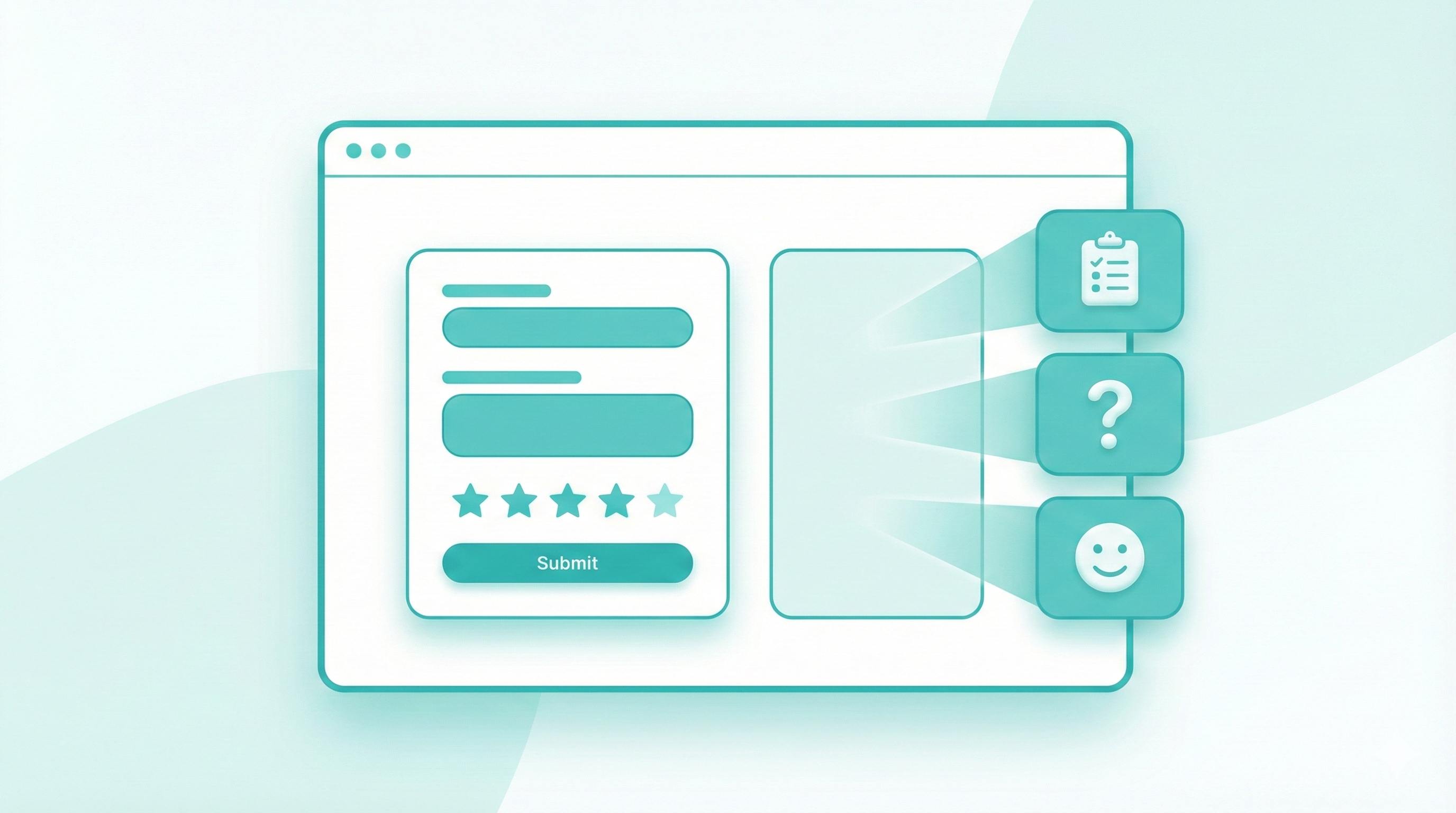
You want feedback. Real feedback. Not guesses. A survey form on your website makes that happen. And you do not need a developer or custom code to set it up.
This guide shows simple ways to add a survey form online using tools that work out of the box. You will also see clear survey form examples and when to use Google Forms or a tool like Simplagents.

Why Add a Survey Form to Your Website?
Before we get into the how, let's talk about why this matters.
Survey forms help you understand what your visitors think, what they need, and where you can improve. You can collect product feedback, measure customer satisfaction, or learn more about your audience's preferences.
The data you collect tells you exactly what's working and what needs fixing. No more guessing.

Survey Form Options You Can Use
You have several ways to collect feedback online. Here's what most people use:
Google Forms
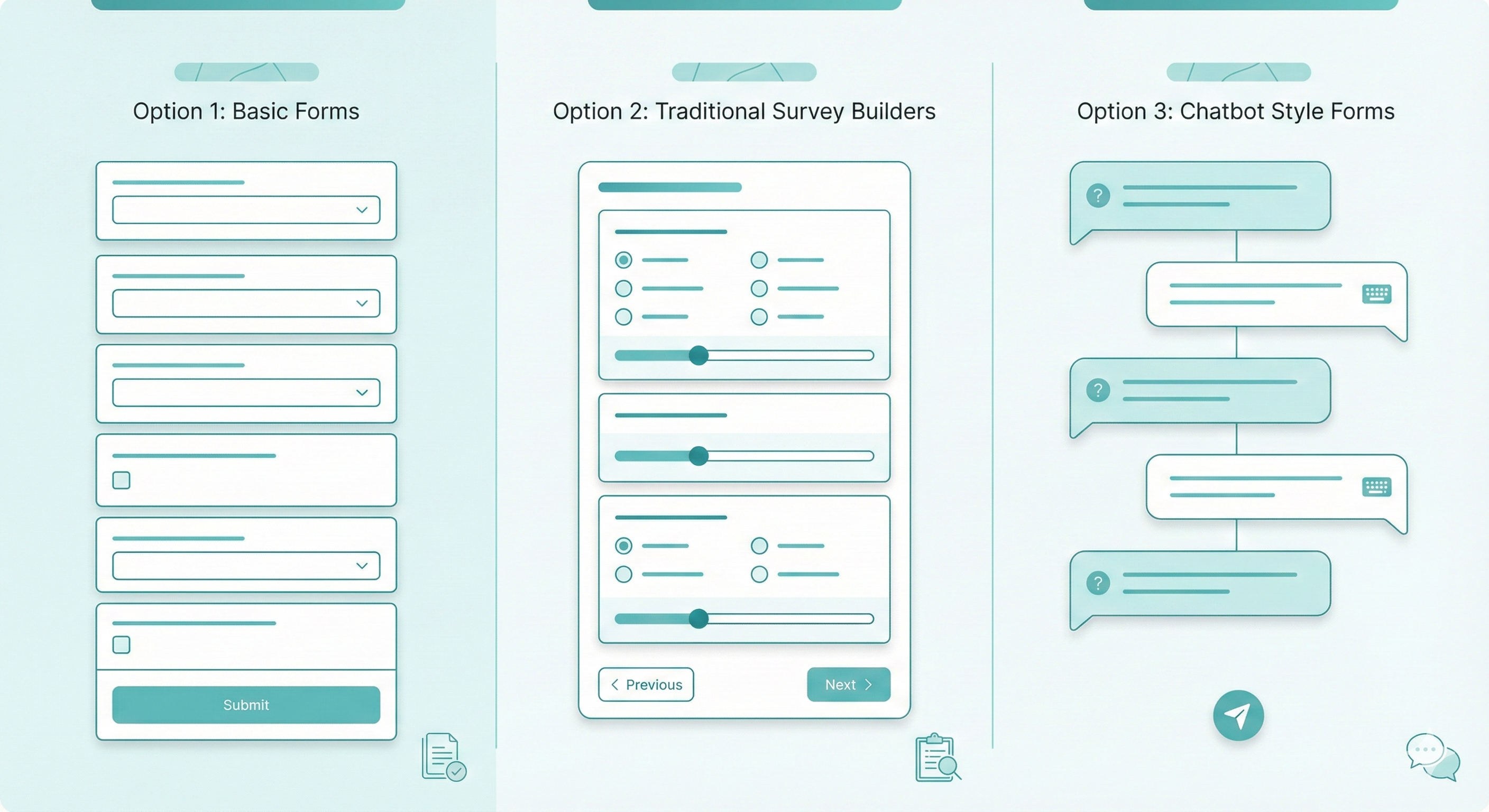
Survey form Google options are popular because they're free and easy to set up. You create your questions in Google Forms, get a link or embed code, and paste it into your website. It works, but the forms look basic and feel, well, like a Google Form.
Traditional Survey Form Builders
Tools like Typeform, SurveyMonkey, and JotForm let you create better-looking forms. You pick a template, add your questions, and embed the form on your site. Most offer free plans with limited features.
The problem? These survey form examples all share the same issue: they look like forms. Rows of questions, dropdown menus, radio buttons. People see them and think "this will take forever," even when it won't.
This is where things get interesting. Instead of showing visitors a long form, you can use conversational interfaces that ask questions one at a time, like a chat. This approach typically gets better completion rates because it feels easier and more natural.
The Simplest Way: Using Simplagents
If you want something that actually engages your visitors, Simplagents offers a different approach.
It creates survey forms that work like chatbots. Instead of staring at a wall of questions, your visitors have a conversation. The form asks one question, waits for an answer, then asks the next one. It feels less intimidating and more personal.
Here's how it works:
Step 1: Choose a Template
Log into Simplagents and browse their template library. They have templates for customer feedback, lead generation, event registration, and more. Pick the one closest to what you need.
Step 2: Customize Your Questions
Add your own questions, change the wording, adjust the flow. You can add conditional logic (if someone answers "yes" to question 3, ask question 4; if "no," skip to question 6). The builder is visual and straightforward.
You can match the design to your brand too. Change colors, add your logo, adjust the font. It should look like it belongs on your website.
Step 3: Deploy and Share
When you're done, you get a few options. You can:
• Embed it directly on your website (copy and paste a code snippet)
• Share it as a standalone link
• Add it as a pop-up or slide-in widget
• Share it on social media or in emails
The whole process takes maybe 20 minutes if you're starting from scratch. Less if you use a template as-is.
Ready to Build Your Survey?
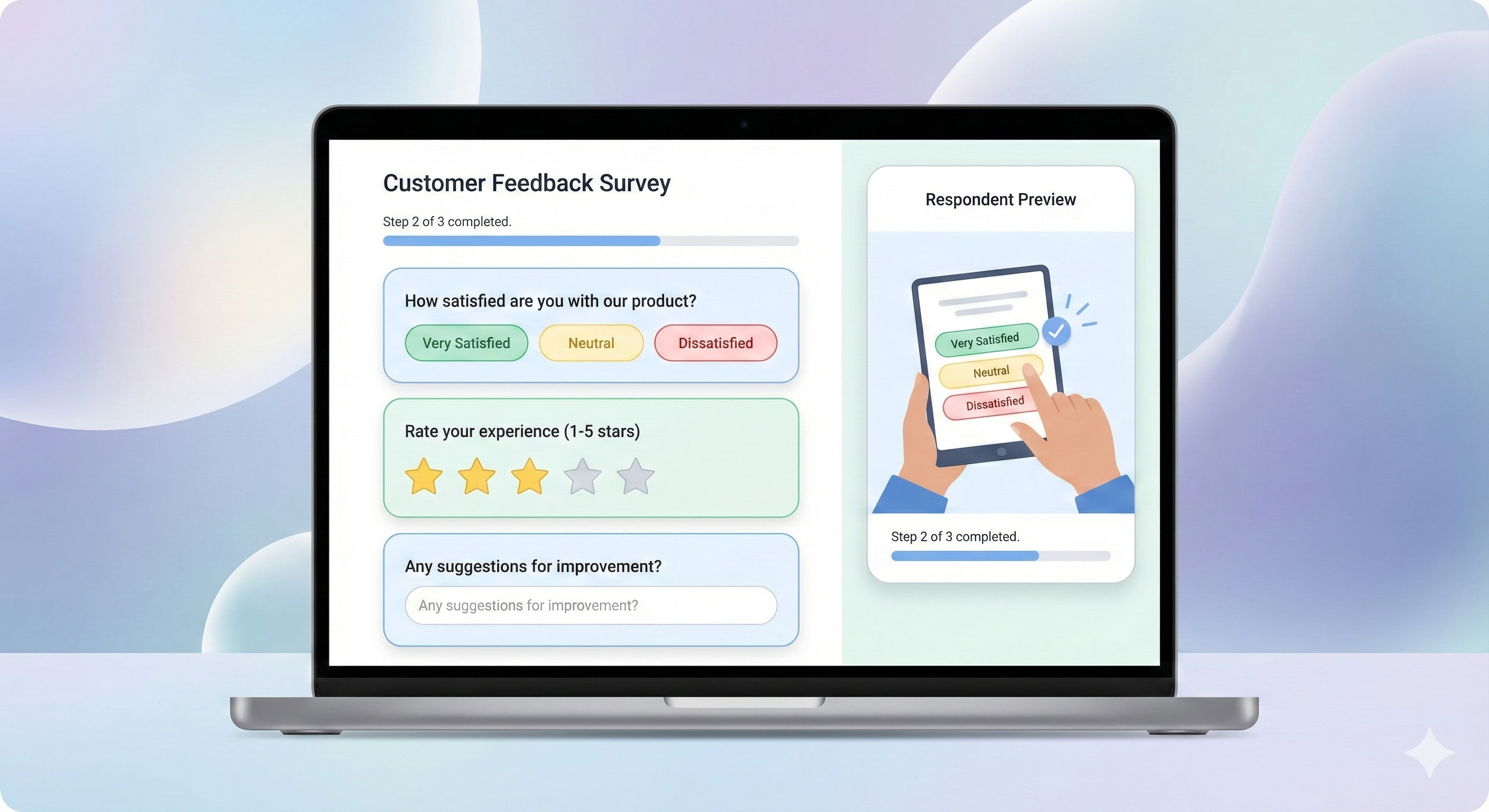
Create an online survey that’s easy to answer and easy to manage.
Where to Place Your Survey Form
You've built your form. Now, where should it live?
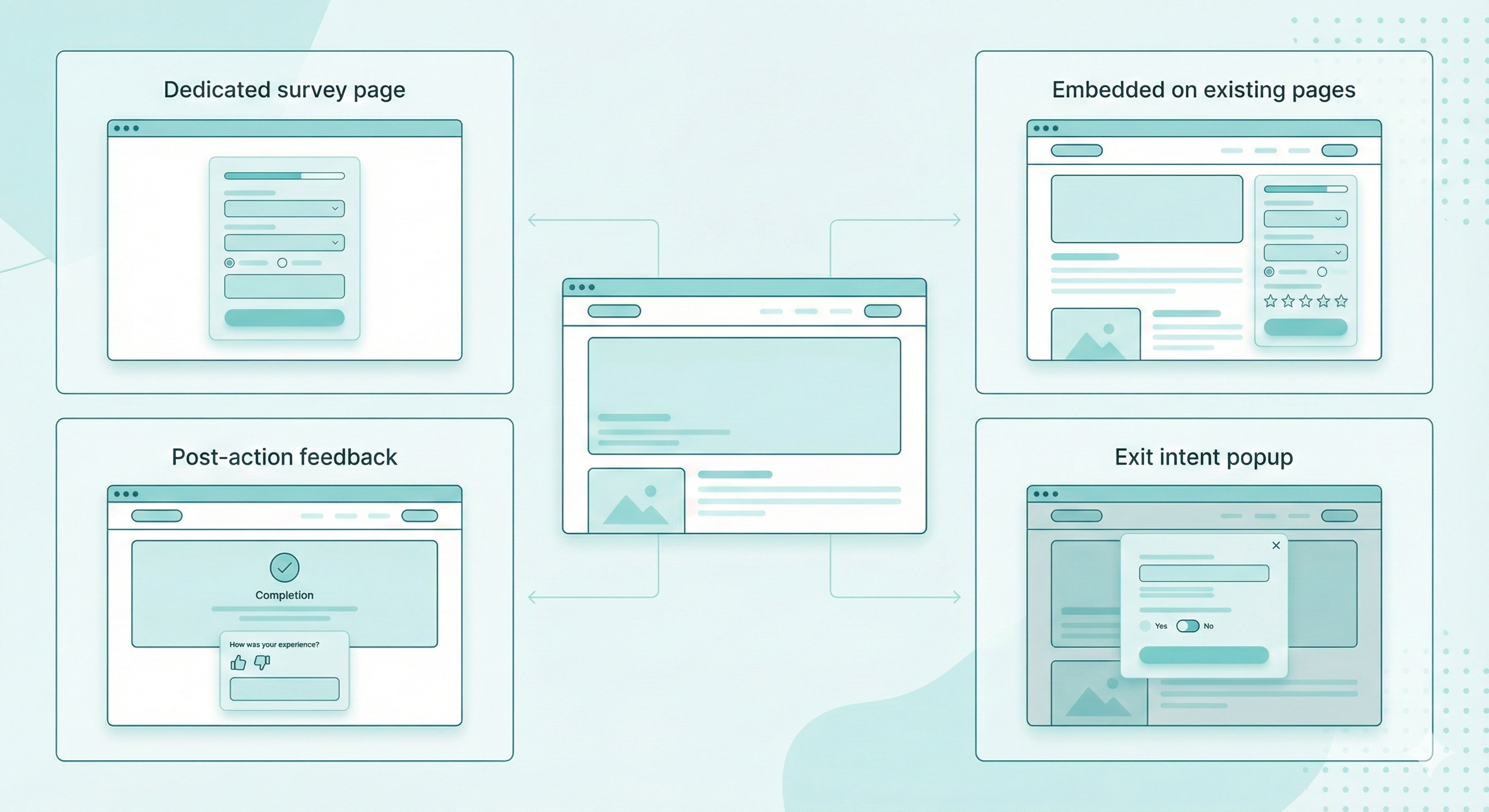
Dedicated Survey Page
Create a separate page on your website just for the survey. This works well when you're promoting the survey through email or social media. The URL is clean and you can track traffic easily.
Embedded on Existing Pages
Add the form to pages where visitors are already engaged. Your "About" page, blog posts, or product pages all work. People who are already interested in your content are more likely to share their thoughts.
Exit Intent Popup
Trigger the survey when someone's about to leave your site. You can ask why they're leaving or what they were looking for. This captures feedback from people who might otherwise disappear without a word.
Post-Purchase or Post-Interaction
After someone completes an action (makes a purchase, downloads a resource, finishes reading), ask for their feedback. Their experience is fresh in their mind.
Tips for Getting Better Response Rates
Building the survey form online is one thing. Getting people to actually complete it is another.
Keep It Short
Ask only what you really need to know. Every extra question drops your completion rate. If you can get your answer in 5 questions instead of 10, do that.
Start With Easy Questions
Begin with simple, quick questions. Once someone answers the first question, they're more likely to continue. Save the harder or more personal questions for later.
Explain Why You're Asking
Tell people what you'll do with their feedback. "Help us improve our checkout process," or "Your input shapes our next product release." People want to know their time matters.
Make It Mobile Friendly
More than half of your visitors probably use phones. Your survey needs to work smoothly on small screens. Chatbot-style forms (like what Simplagents creates) naturally work better on mobile than traditional forms with dropdown menus and checkboxes.
Test Everything
Before you launch, go through the entire survey yourself. Then ask a colleague or friend to try it. Catch confusing questions or technical glitches before your real audience sees them.
Survey form examples you can use today
Question: What almost stopped you from signing up
Format Chat style short answer
Content feedback
Question: Was this page helpful
Format Yes No with follow-up
Product research
Question: Which feature should we build next
Format Multiple choice
Exit feedback
Question: What were you looking for today
Format Short answer
These examples work well inside a chatbot-style survey like Simplagents.
Common mistakes to avoid
Too many questions
Vague wording
Forcing login to respond
Ignoring responses after collection
Using boring layouts, people skip
If the survey feels like work, users will close it.
Try a Simple Online Survey
Create a short, clear survey and see how people respond. No setup friction. No learning curve.