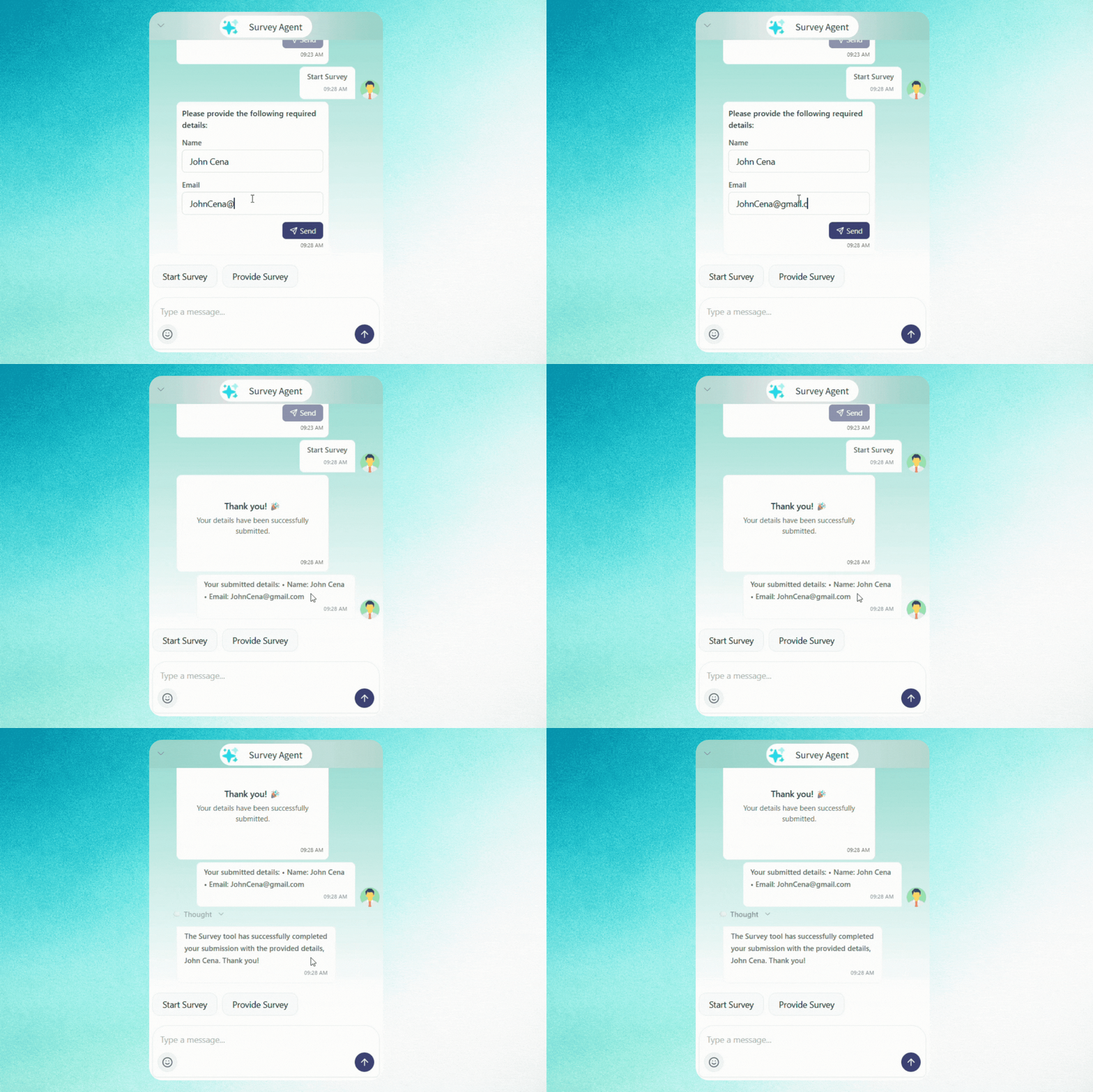
Conversational Agent
What Is a Conversational Survey?
A conversational survey is a survey conducted through a chat interface instead of a long, static form.
Users answer questions naturally, one step at a time, as if they are chatting with a human.
Instead of showing:
• A long Google Form
• Multiple fields on one page
• High-friction forms that users abandon
A conversational survey:
• Asks one question at a time
• Adapts based on user responses
• Feels natural and interactive
• Works inside chat widgets, websites, or messaging platforms
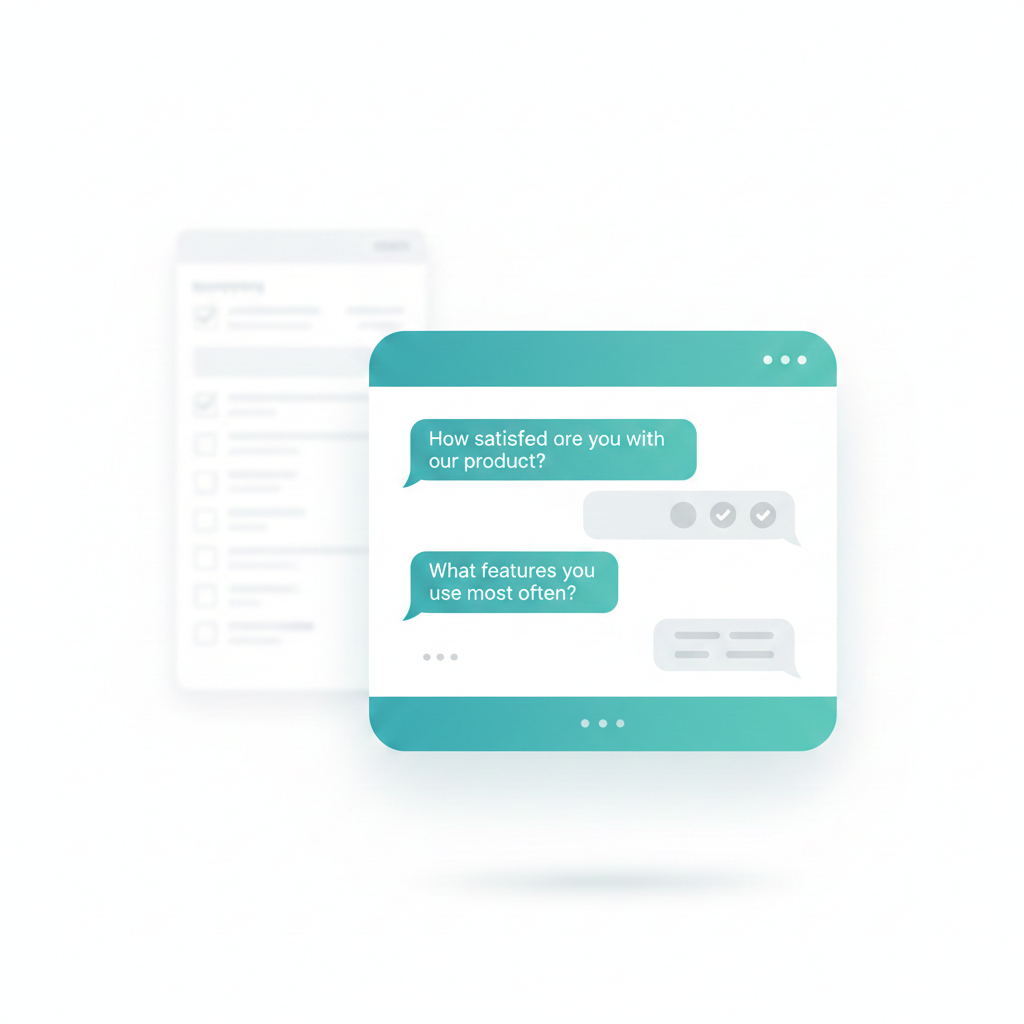
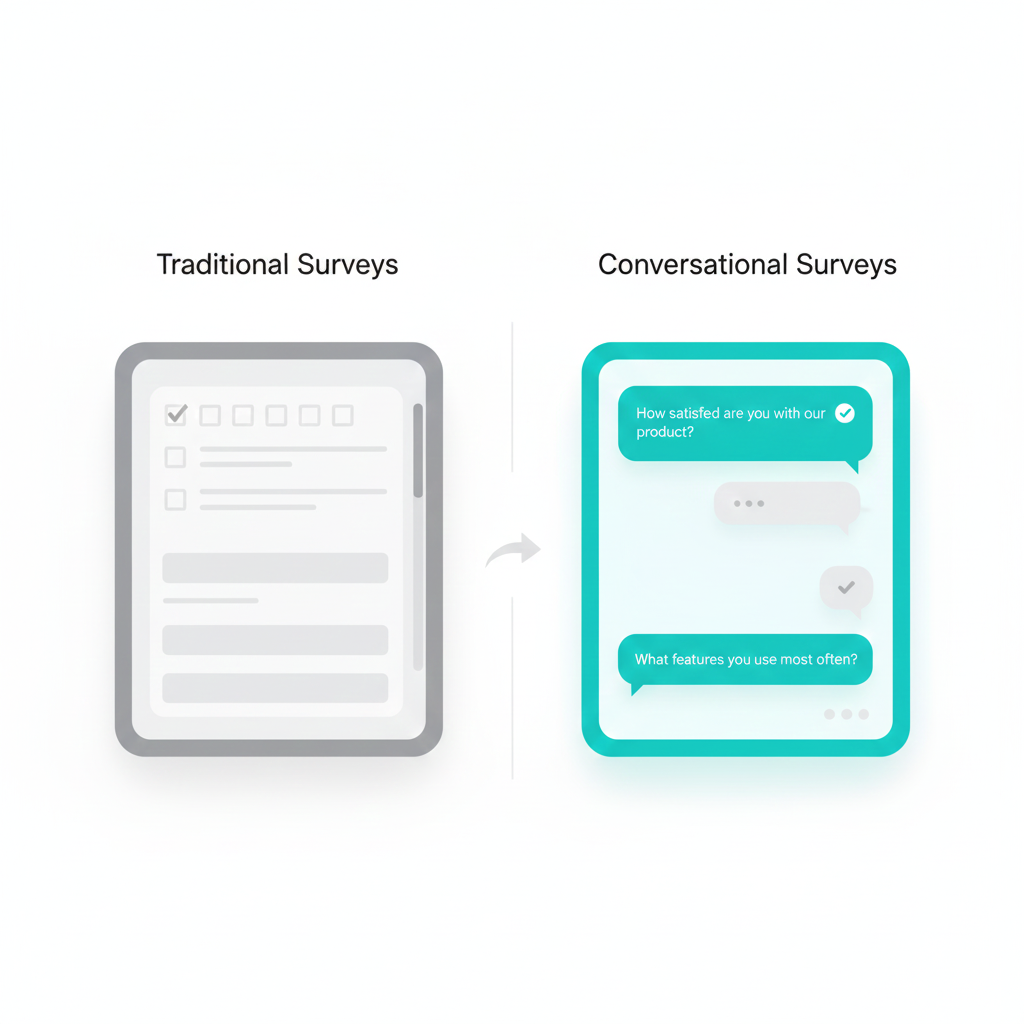
How Conversational Surveys Are Different From Traditional Surveys
Traditional Surveys
• Static forms
• High drop-off rates
• One-size-fits-all
• Feels like a task
• Limited engagement
Simplagents Conversational Surveys
• Dynamic chat-based flow
• Higher completion rates
• Adaptive questions
• Feels like a conversation
• Interactive and human-like
Benefits of Using a Conversational Survey
• Higher response rates - users are more likely to complete the survey
• Better data quality - users answer thoughtfully, one question at a time
• Faster completion - no overwhelming forms
• Real-time engagement - users can ask questions while answering
• Works everywhere - website, live chat, iframe, QR, WhatsApp
What the Survey Agent Tool Does
The Survey Agent is an AI-powered conversational agent that:
• Asks predefined survey questions
• Collects structured responses
• Validates user inputs (email, number, options, etc.)
• Stores responses automatically in CRM
• Runs inside a chat interface
• Can be embedded or shared via link
Problems This Tool Solves
• Users abandoning long survey forms
• Low engagement with feedback collection
• Manual follow-ups for incomplete surveys
• Poor-quality or unstructured responses
• Separate tools for chat and surveys
With a Survey Agent, survey + conversation + data collection happen in one place.
Step-by-Step: How to Create a Conversational Survey Agent
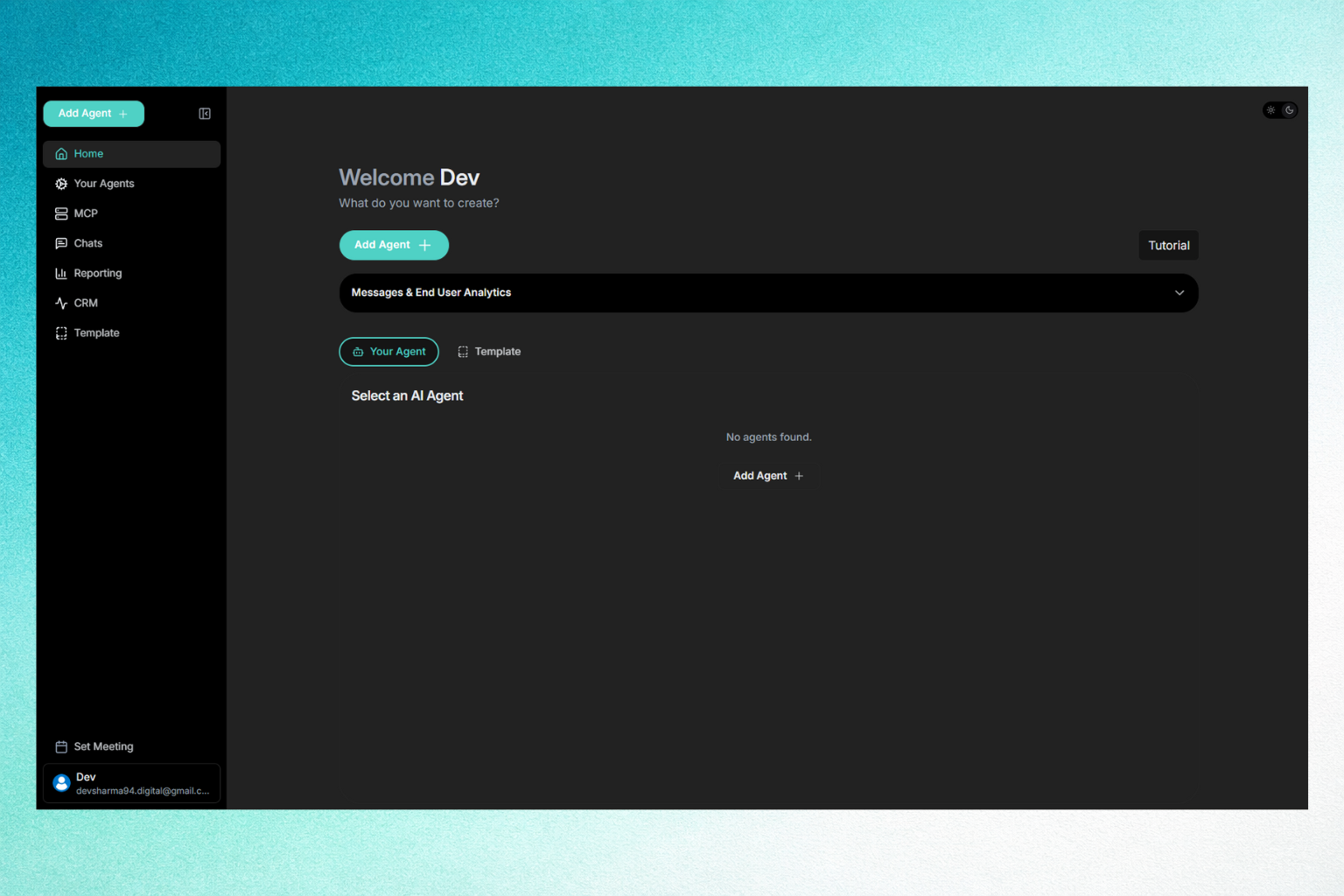
Step 1: Log In to the Dashboard
After logging in, you land on the Home Dashboard where you can create and manage agents.
Step 2: Click on “Add Agent”
• Click Add Agent
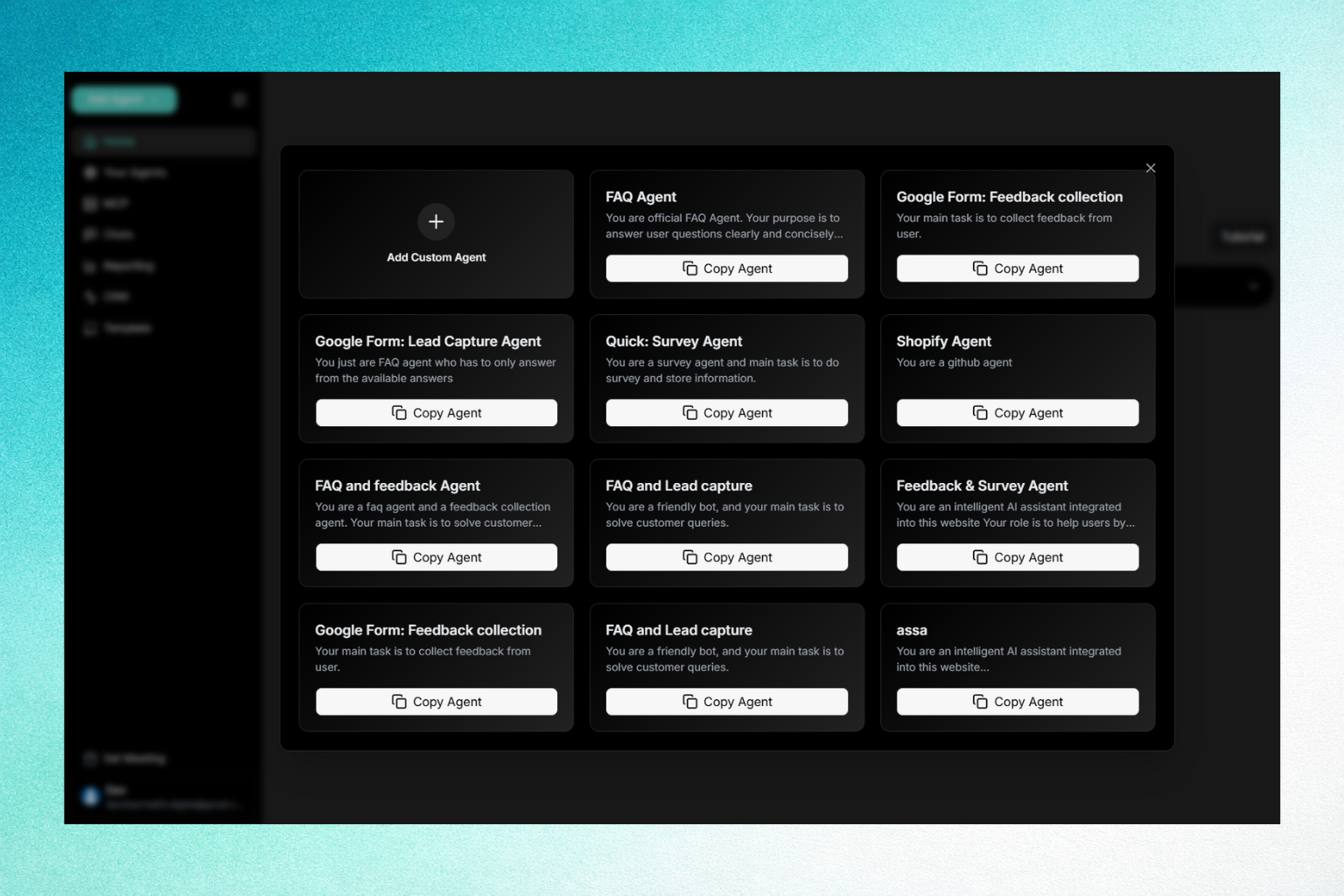
• This opens the Templates Library
Here you’ll see multiple ready-made agent templates.
Step 3: Copy the “Quick: Survey Agent” Template
• Find Quick: Survey Agent
• Click Copy Agent
This instantly creates a working survey agent for you.
Step 4: Ensure Agent Mode Is Set to “Tools”
Once the agent opens:
• Go to AI Definition
• Make sure the toggle is set to Tools
• (Not Off, Not FAQ, Not Tools + FAQ)
This allows the agent to actively collect structured survey data.
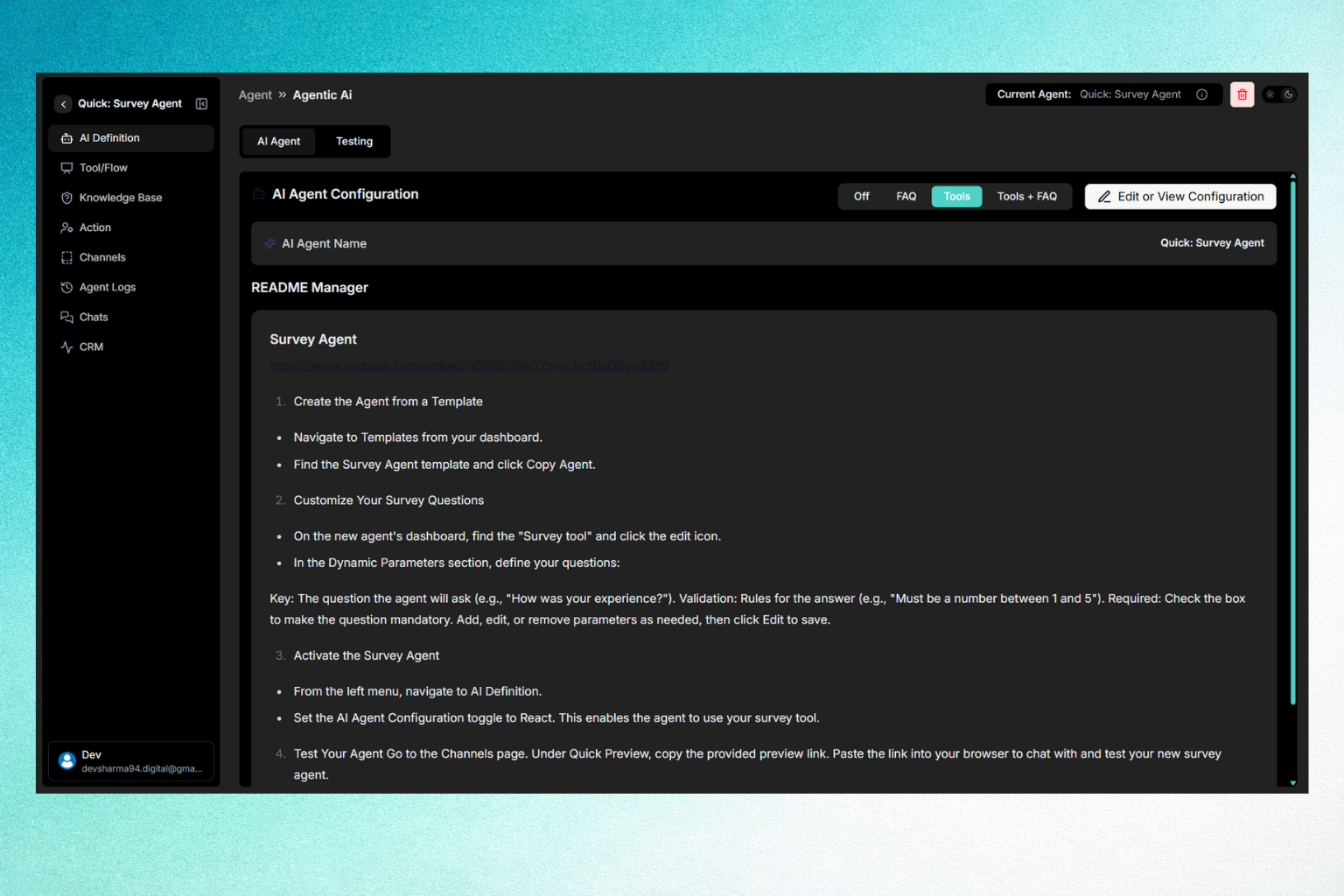
Step 5: Edit Agent Configuration
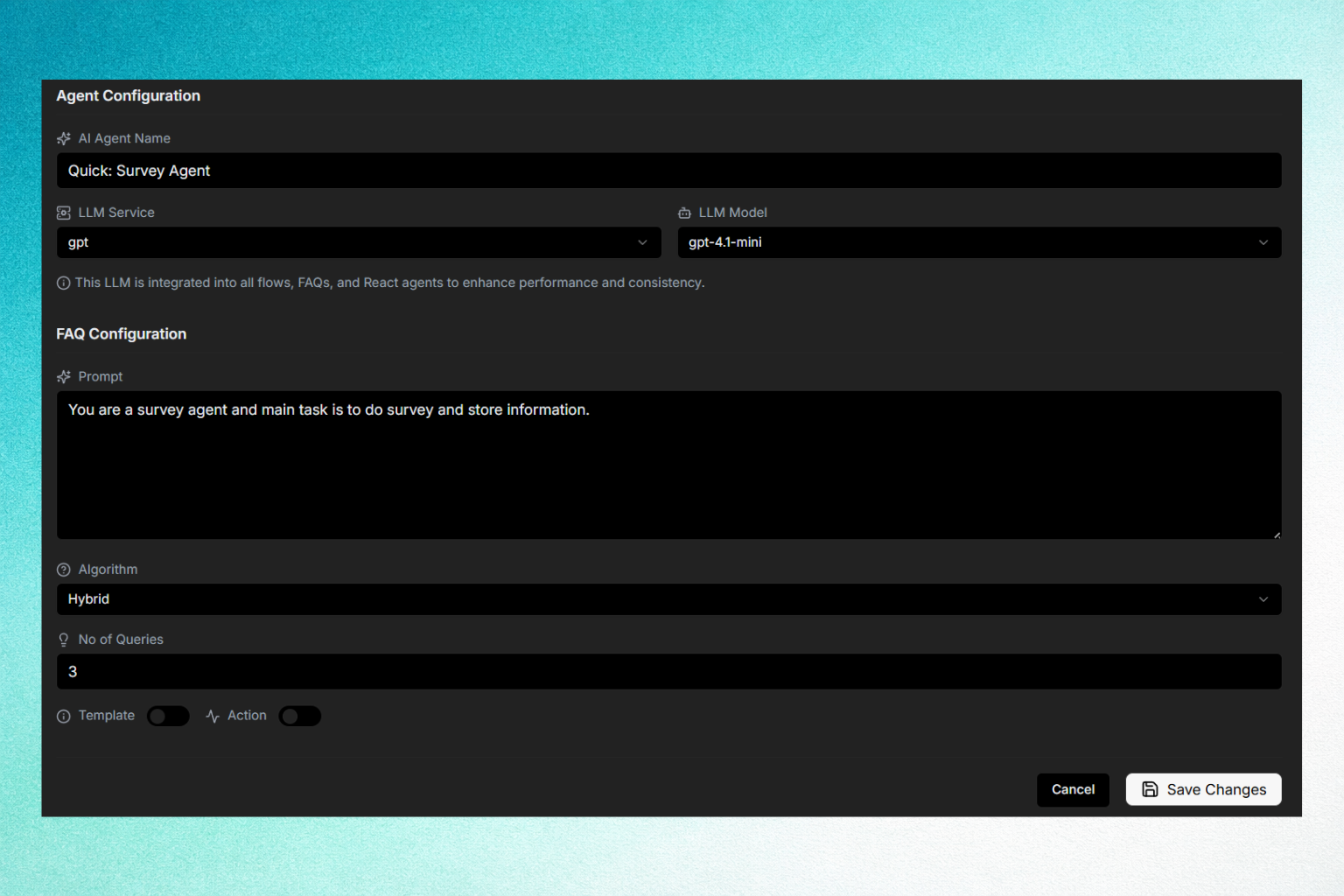
Click Edit or View Configuration next to Tools + FAQ.
Here you can:
• Change the Agent Name
• Modify the Agent Prompt
• Select the LLM Model (for example: gpt-4.1-mini)
• Control how the agent behaves during the survey
Example prompt:
“You are a survey agent. Your task is to ask questions one by one and store structured responses.”
Click Save Changes.
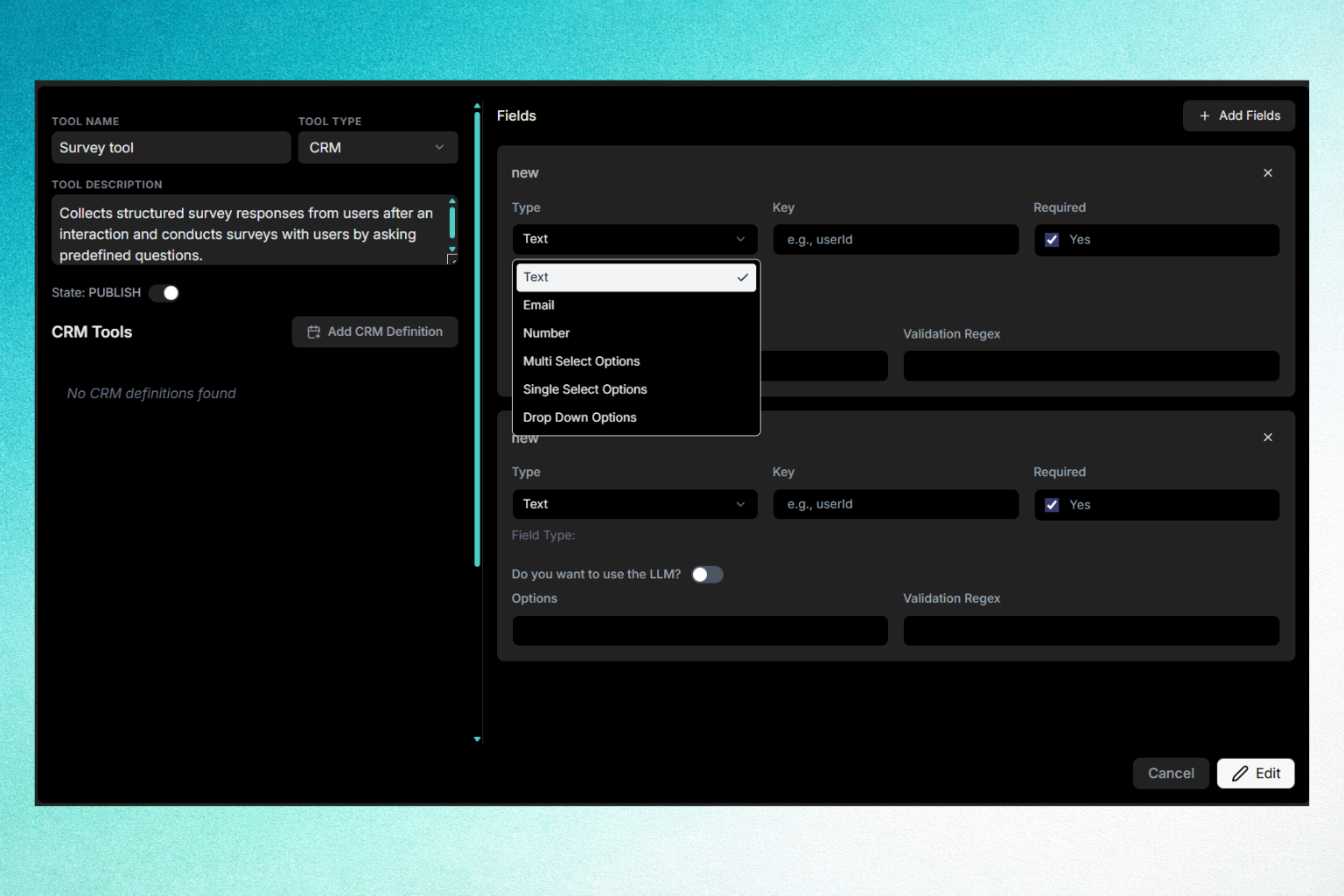
Step 6: Configure the Survey Tool
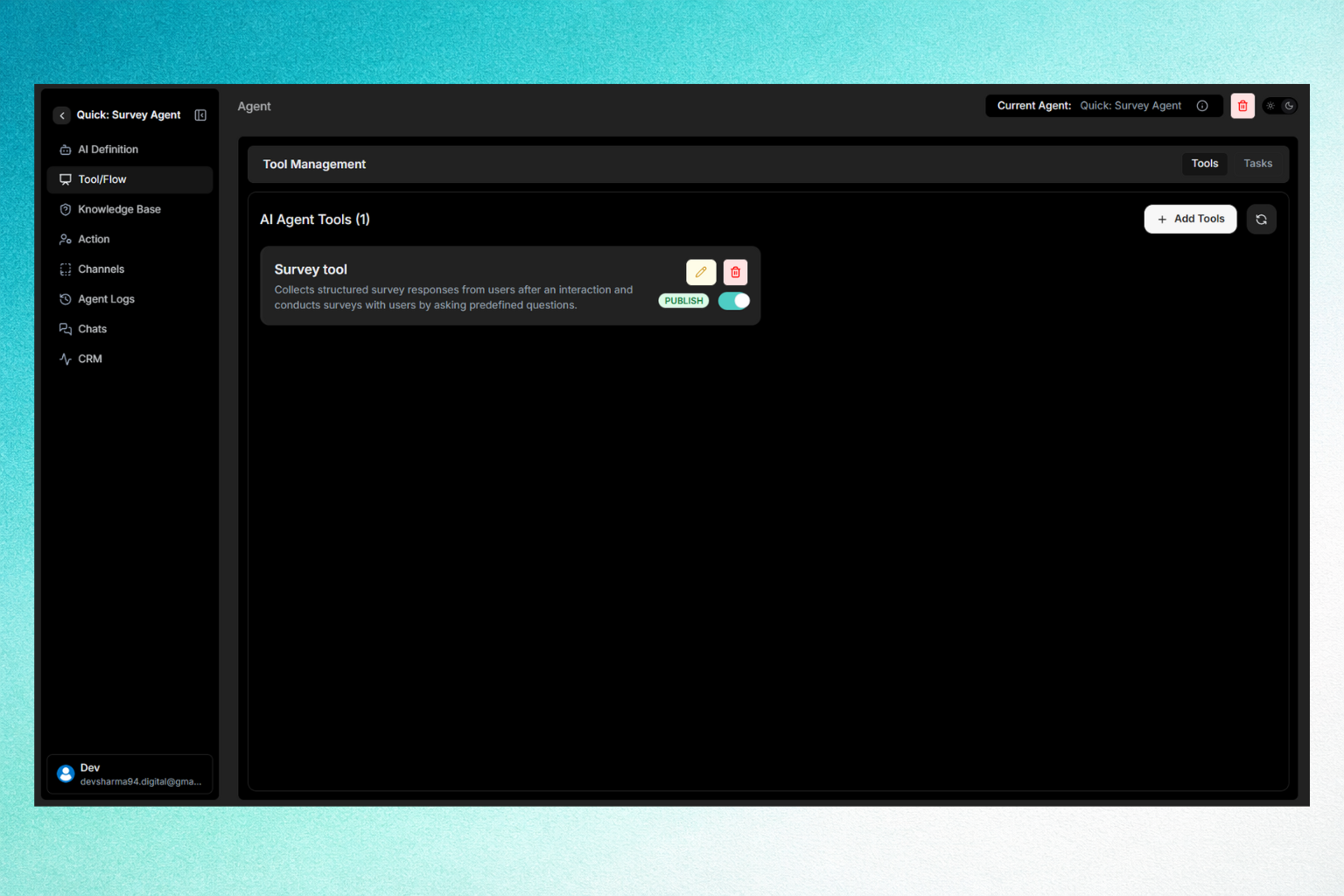
Now go to the left menu and click Tool / Flow.
• Find Survey Tool
• Click the pencil (edit) icon
Define Your Survey Fields
For each question:
• Choose Field Type
• Text
• Number
• Single select
• Multi select
• Dropdown
• Set a Key (example: name, email, rating)
• Mark it Required if mandatory
• Add Validation Regex if needed
This defines how the agent asks and stores survey data.
Click Edit to save.
Step 7: Customize the Chat Experience
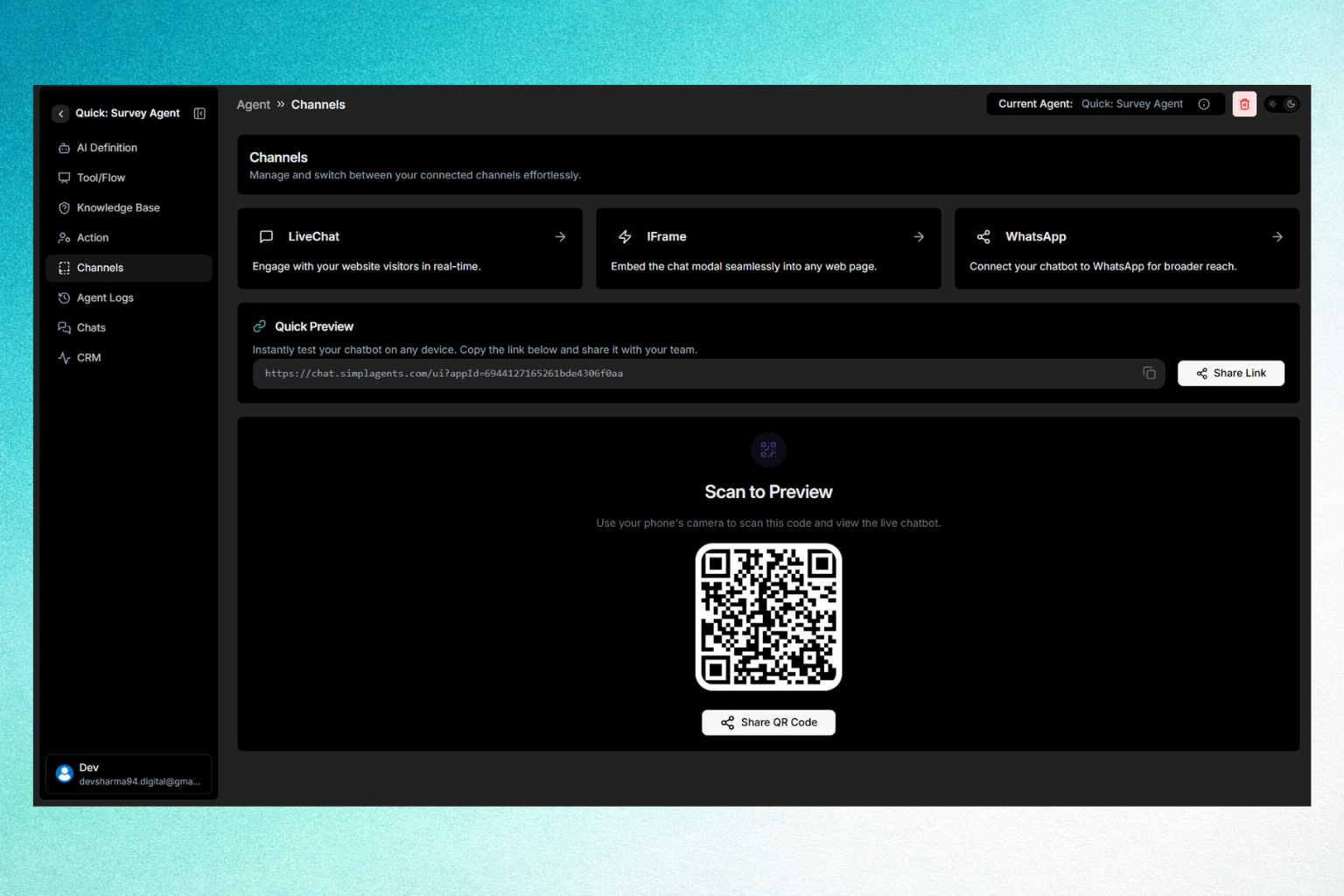
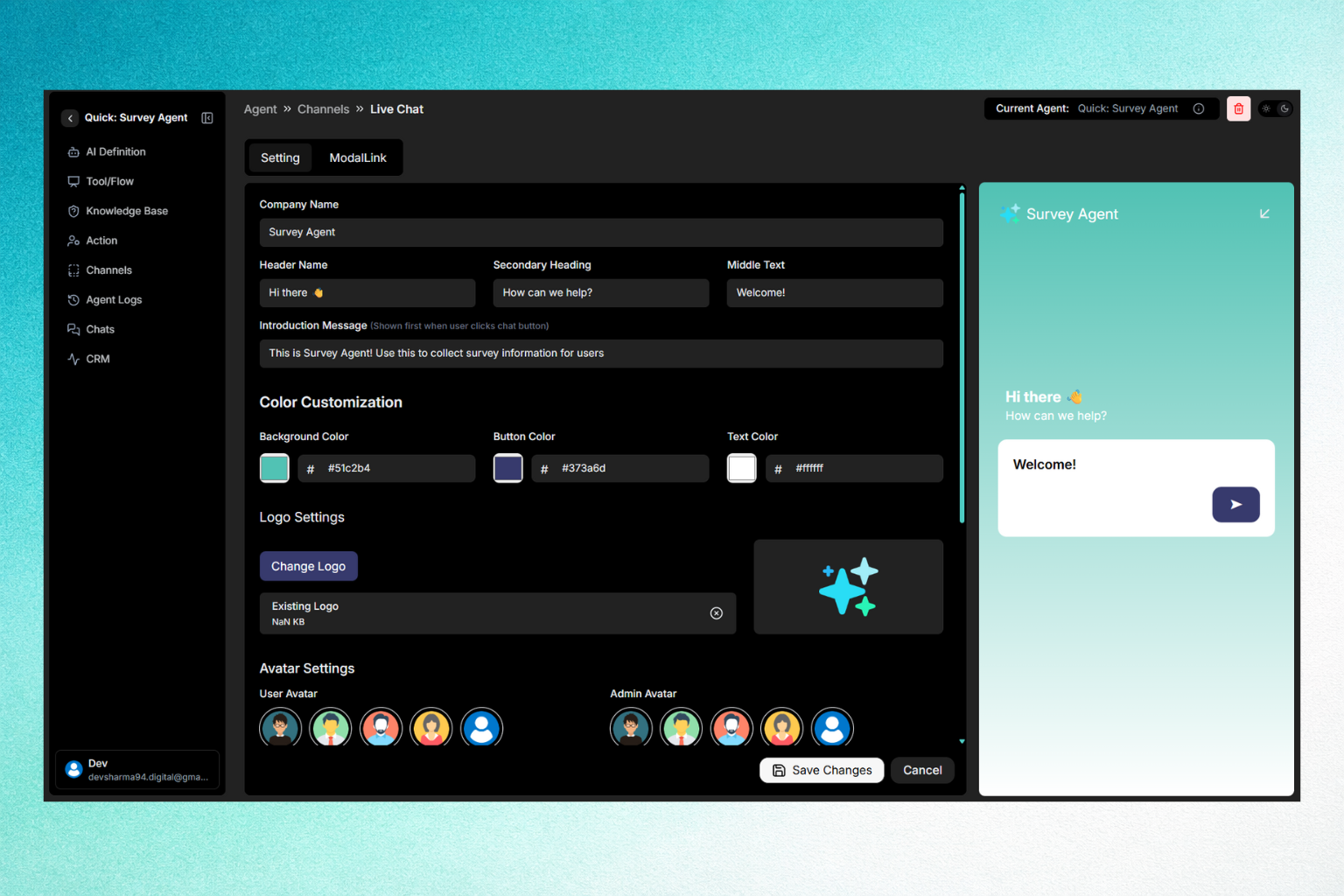
Go to Channels → Live Chat.
Here you can customize:
• Company name
• Header text
• Welcome message
• Button color
• Background color
• Logo
• User and admin avatars
This controls how the survey feels to end users.
Click Save Changes.
Step 8: Deploy and Test the Survey Agent
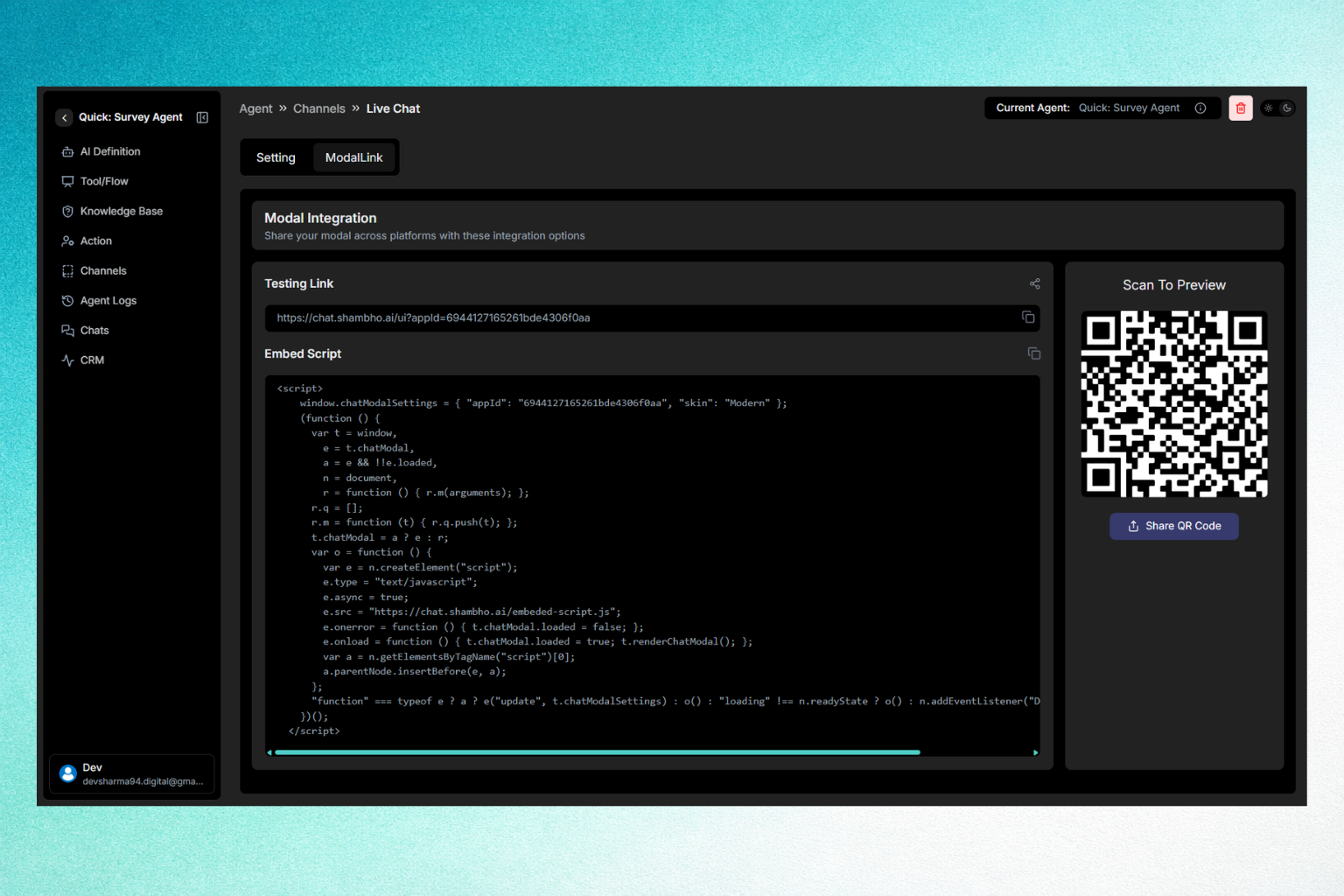
Still inside Live Chat, switch to ModalLink.
You can:
• Copy the Testing Link
• Embed the agent using the script
• Share QR code
• Use iframe on any website
This is where your survey becomes live.
Step 9: Experience the Conversational Survey
When users open the chat:
• They see a welcome message
• Click Start Survey
• Answer questions one by one
• Submit responses naturally
All responses are stored automatically in CRM.