Lead Capture Tool – CRM Documentation
What Problem This Tool Solves
• Website visitors leave without filling out long forms
• Leads are captured but never reach the CRM
• Sales teams receive incomplete or unqualified leads
• Manual data entry causes delays and errors
• No context is available when following up with leads
The Lead Capture tool removes these issues by collecting and syncing lead data automatically.
What the Lead Capture Tool Does
• Engages visitors through a chat-based interface
• Asks structured questions in a conversational flow
• Captures lead information in real time
• Sends collected data directly to your CRM
• Works without any coding or technical setup
Data Collected
The Lead Capture tool can collect the following information:
• Name
• Email address
• Phone number
• Company name
• Role or designation
• Custom questions defined by the business
All fields are configurable based on your requirements.
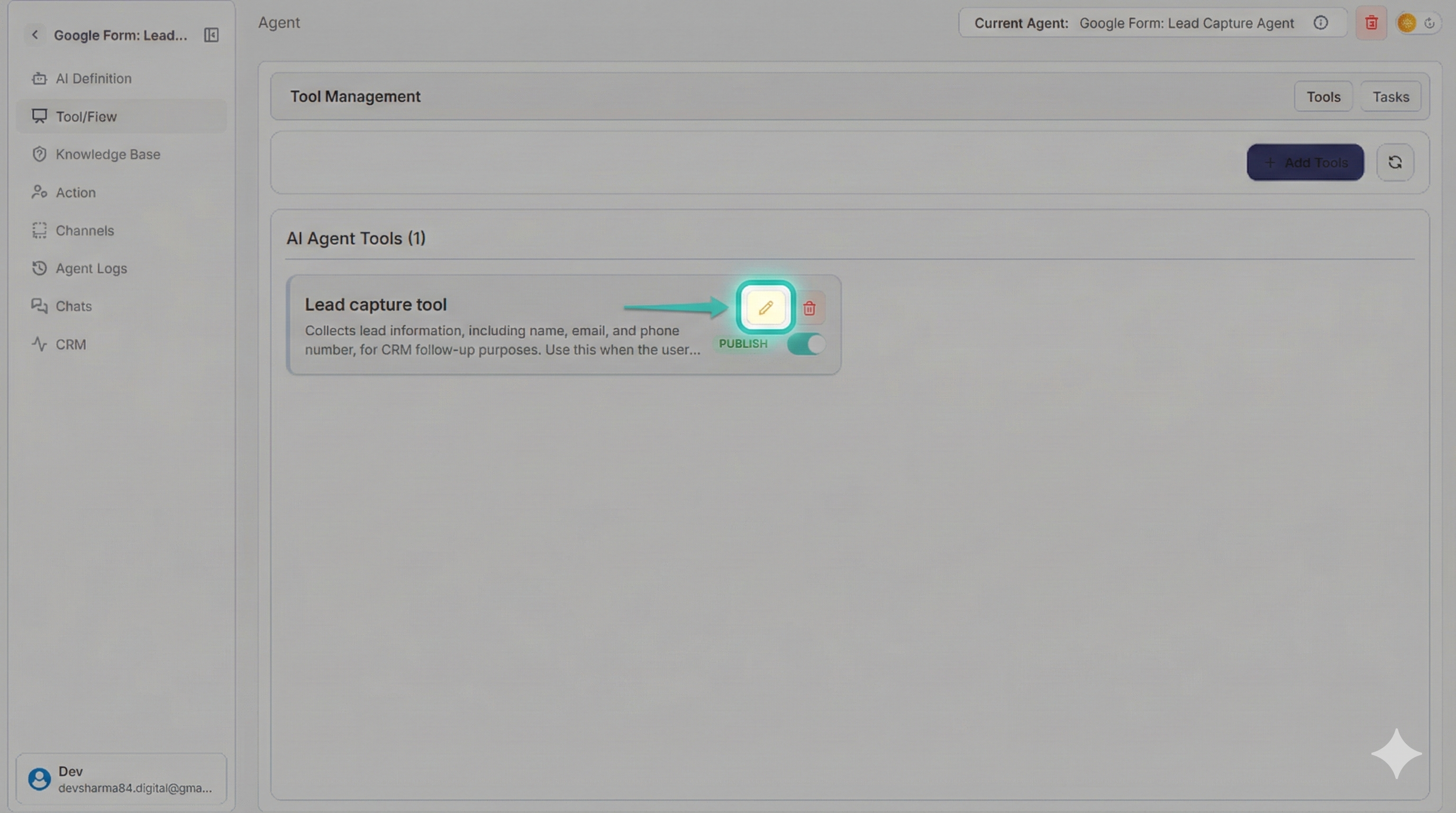
Step 1: Open the Agent Editor
Click on the newly created Lead Capture agent to open its configuration page.
Step 2: Customize Lead Questions
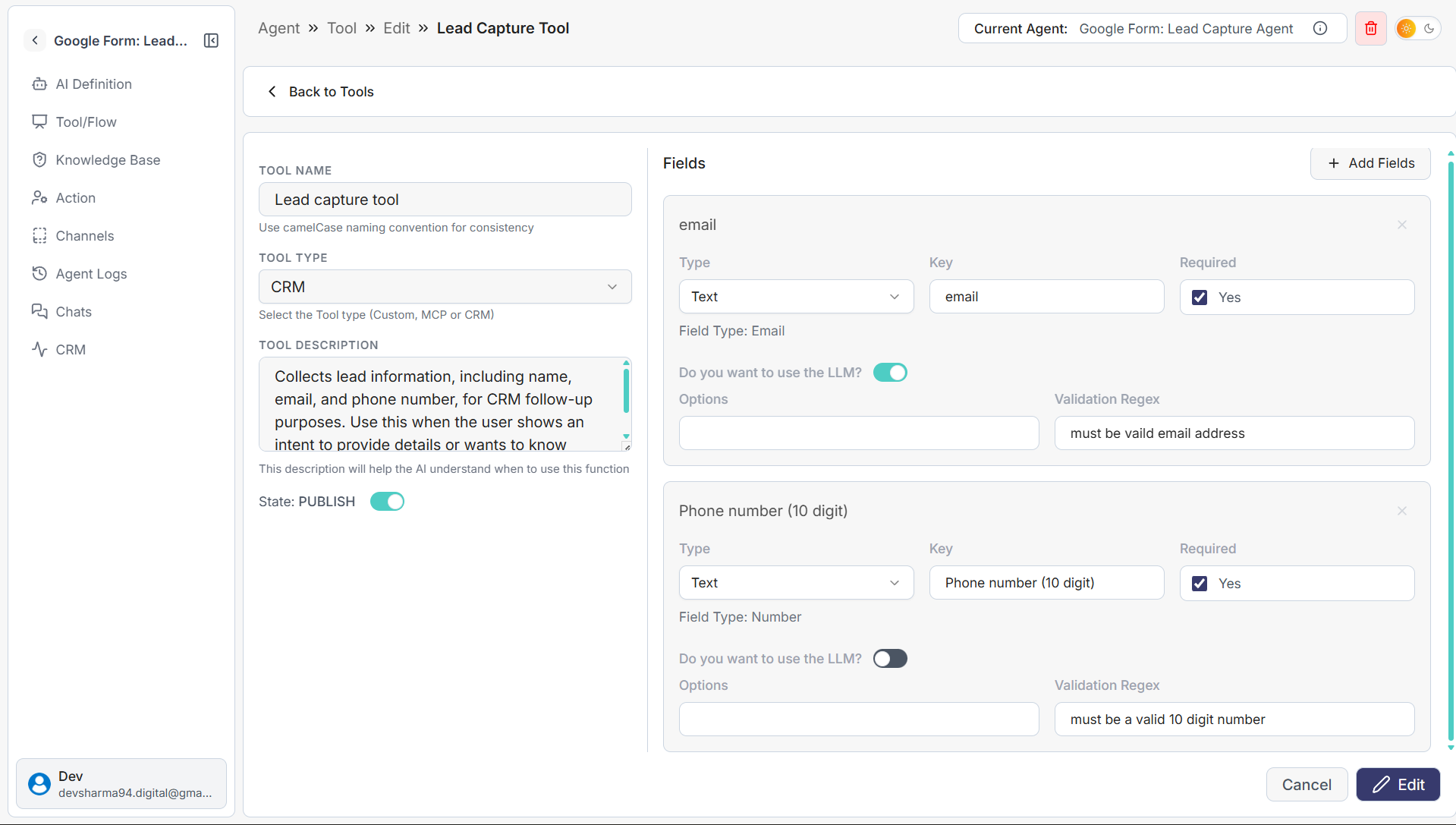
In the agent editor:
• Add or remove questions
• Choose what information you want to collect
• Reorder questions based on your sales flow
• Mark fields as required or optional
This controls how leads are captured.
Step 3: Save and Publish
After customization:
• Save your changes
• Publish or activate the agent
Your Lead Capture tool is now live.
Where the lead Capture Tool is Used
• Website homepages
• Landing pages
• Campaign pages
• Product pages
• Contact or demo request pages
The agent runs continuously and captures leads 24/7.