How to Create a Google Form with AI
Created: 10/08/2026
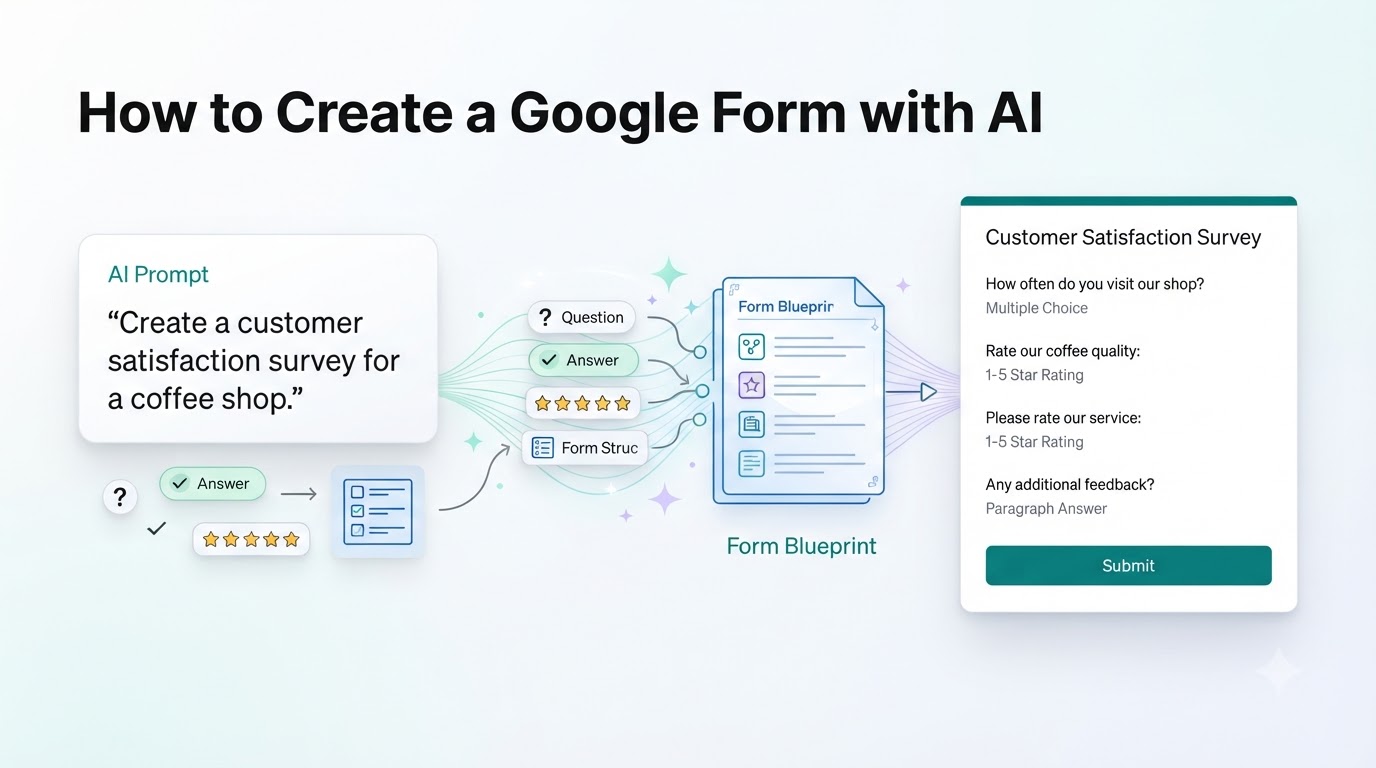
Creating a Google Form manually is easy enough. The problem starts when you need to create a good one.
You have to think about what questions to ask, how to phrase them, which answer types to use, and how to organize everything. For a simple form, that may take a few minutes. For a detailed survey, it can take much longer.
AI changes that process.
Google Forms now includes Gemini features that can help generate forms from a description. Instead of starting with a blank form and adding every question yourself, you can describe what you need and let AI create the initial structure.
Here's how the process works.
Start With Gemini in Google Forms
The first thing you need is access to Google's Gemini features in Google Forms.
Google has been adding AI features to Workspace, including an option called "Help me create a form." Availability depends on the Google account and Workspace plan you use, so the option may not appear for everyone.
Once you have access, open Google Forms and create a new form.
You can also type forms.new directly into your browser to open a new Google Form.
If Gemini is available for your account, you'll see the option to use AI to help create the form.
Open a New Google Form
Open Google Forms on your computer and create a new form.
You can also type:
forms.new
into your browser's address bar to quickly open a new Google Form.
If Gemini is available for your account, you should see the "Gemini form" option when starting a new form. Google also says you can access this option from the Forms toolbar.
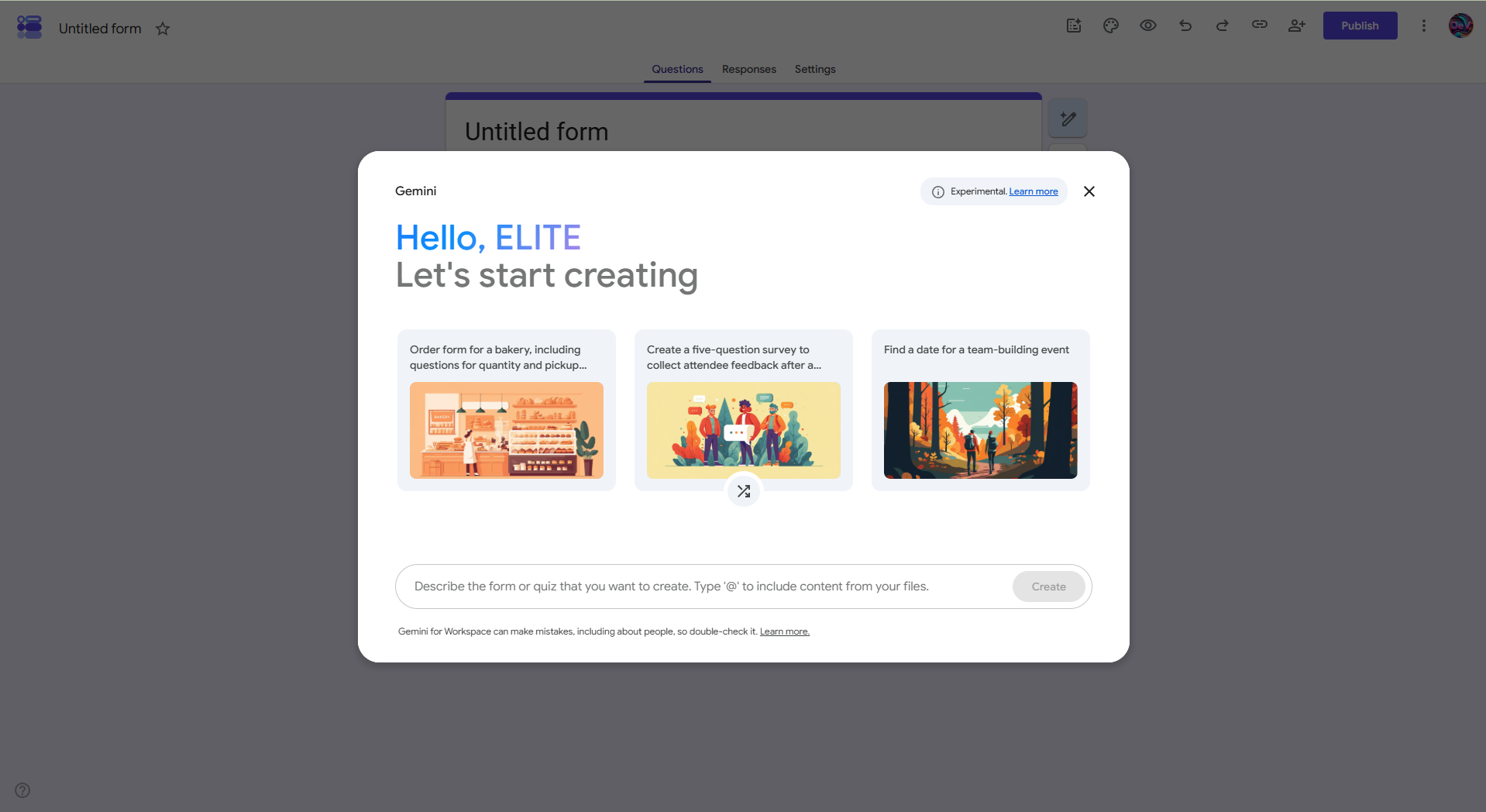
Give Gemini a Clear Prompt
This is where the AI does most of the initial work.
Instead of adding questions one by one, describe the form you want.
For example:
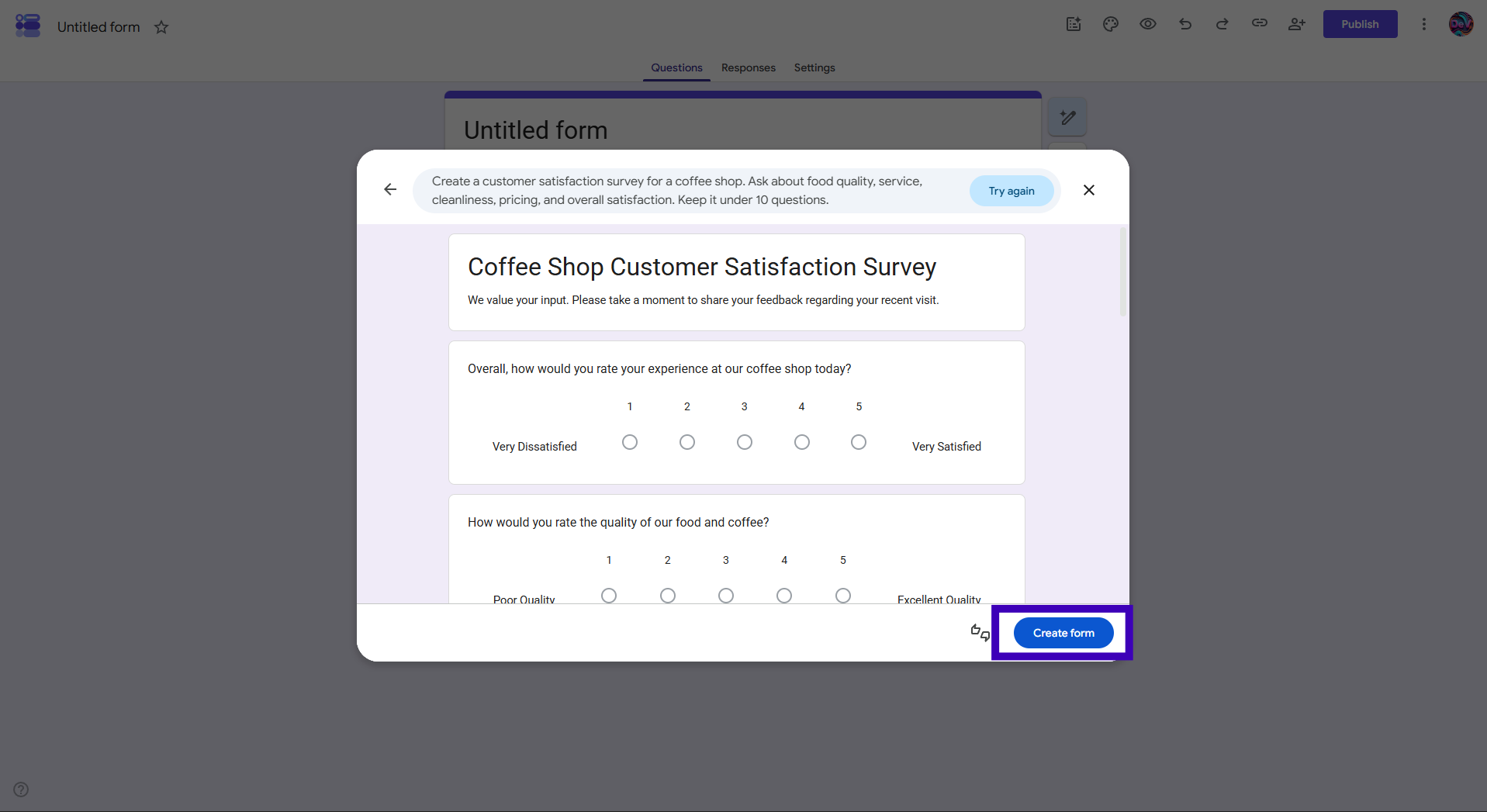
Create a customer satisfaction survey for a coffee shop. Ask about food quality, service, cleanliness, pricing, and overall satisfaction. Keep it under 10 questions.
You can also create other types of forms:
Create an event registration form for a marketing conference. Collect attendee name, email, company, job title, dietary requirements, and session preferences.
Google recommends including more details in your prompt when you want a more specific form.
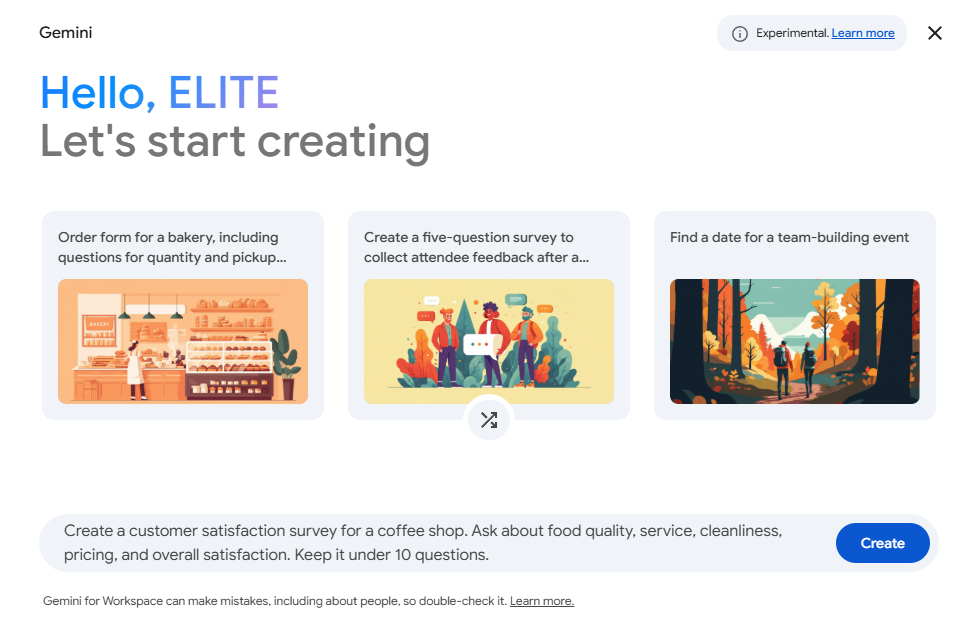
Review the AI-Generated Form
Gemini will generate a draft based on your prompt.
Look through the questions before creating the final form.
Check:
• Are the questions relevant?
• Are any questions repetitive?
• Are the answer choices appropriate?
• Is anything important missing?
• Is the form too long?
You can edit your prompt and submit it again if the generated draft needs changes. Google also allows you to create another version using the recreate option.
This review step is important because AI-generated content can contain mistakes or suggestions that don't fit your specific use case. Google also notes that Gemini features may produce inaccurate or inappropriate information.
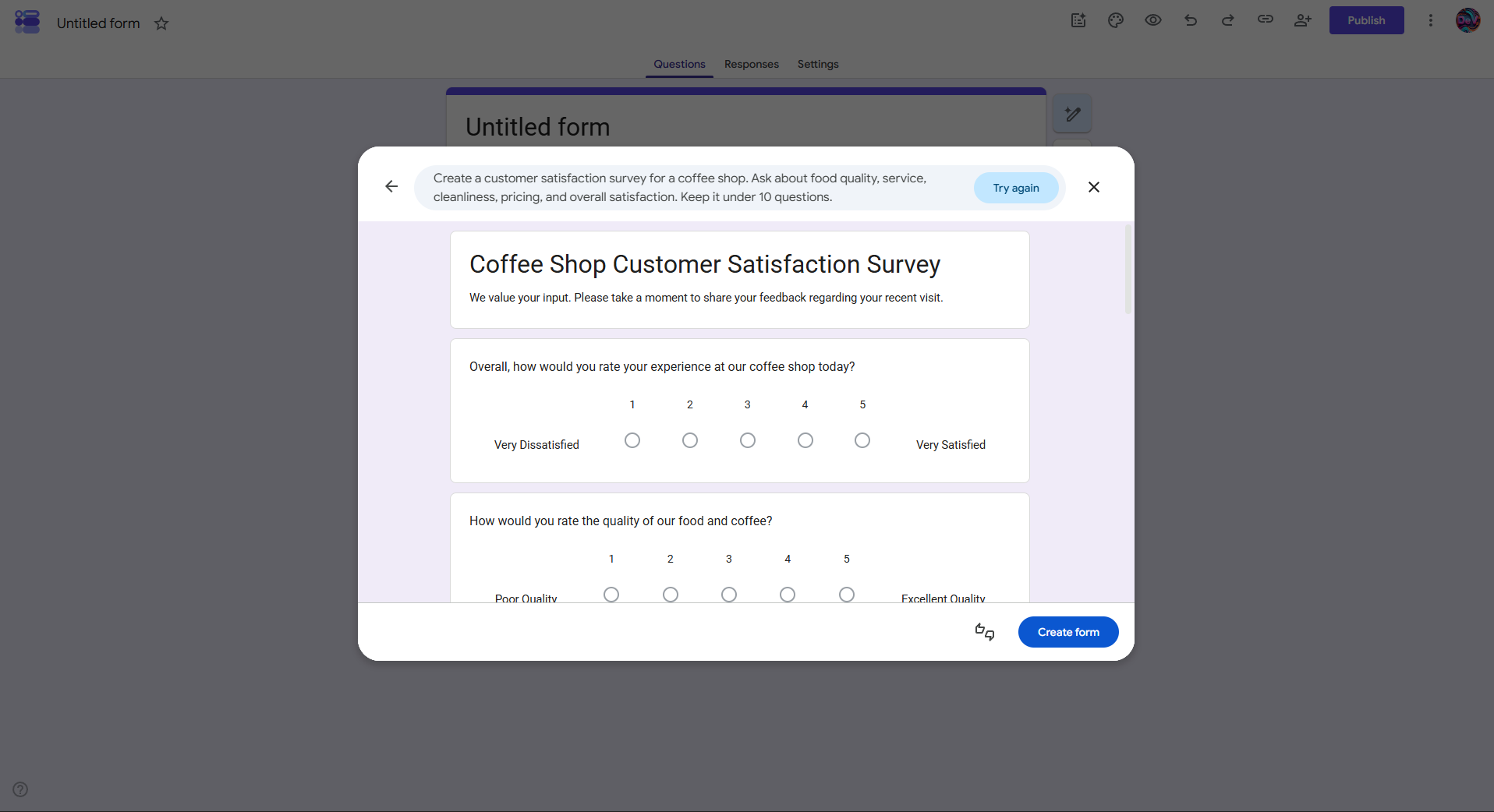
Create the Form
Once the generated draft looks right, click Create form.
This turns the generated draft into your Google Form.
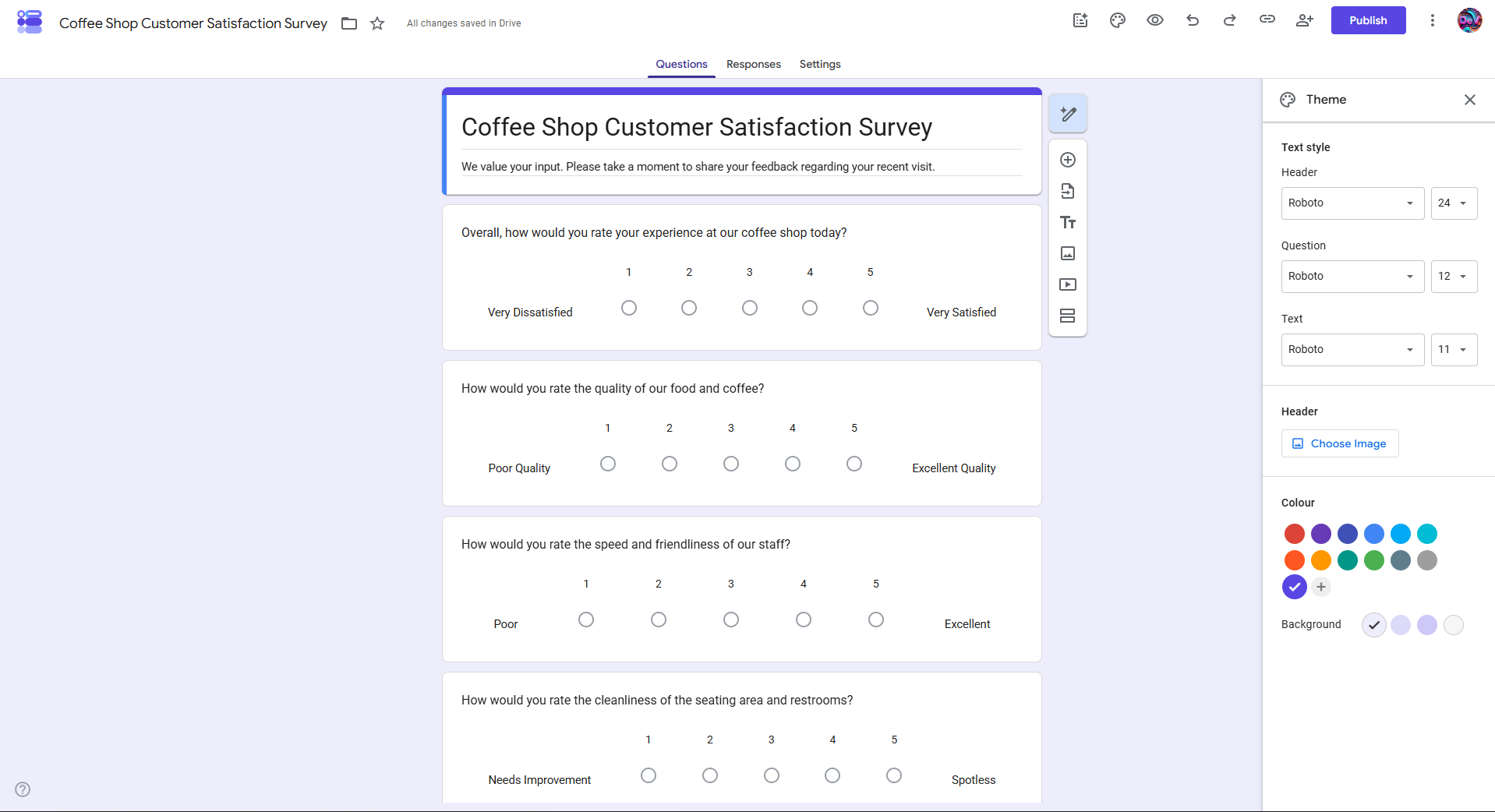
You can then make normal changes to the form, including editing questions, changing answer options, and adjusting other settings.
Customize the Form
After the questions are ready, customize the form so it fits your purpose.
You can adjust things such as:
• Theme
• Colors
• Header
• Fonts
• Question settings
Keep the design simple and make sure the questions are easy to understand.
Publish and Share the Form
When your form is ready, review the responder access settings.
Make sure the people you want to reach can actually open and complete it.
Google's current Forms workflow uses Publish to make the form available to responders, after which you can copy the responder link and share it.
You can share the form through:
• Website
• Social media
• Messaging apps
What If You Don't Have Gemini in Google Forms?
Not every Google account has access to the same Gemini features.
If you don't see the AI form creation option, you can still use another AI assistant to prepare the form before building it in Google Forms.
For example, you can ask AI to create:
• The form title
• Introduction
• Questions
• Answer choices
• Question types
• Question order
Then take that structure and add it to Google Forms.
There is also another option: AI form builders.
Instead of using AI only to generate the questions, an AI form builder can generate the actual form from your prompt. Platforms like Simplagents use this approach, allowing you to describe the form you need, generate the fields, customize them, and publish the finished form.
What form would you like to create?
Describe your idea and AI will generate and configure the perfect form.
The Simple Workflow
The entire process can be reduced to a few steps:
Describe the form → Generate the draft → Review the questions → Customize → Publish
The biggest difference is where you start.
Instead of starting with an empty Google Form, you start with an AI-generated draft.
You still make the final decisions, but you spend less time creating every question and field manually.
Final Thoughts
AI doesn't remove the need to think about your form.
You still need to know what you want to learn, which information you need, and what you plan to do with the responses.
What AI changes is the amount of manual work between having an idea and having a usable form.
Give it a clear prompt, review what it creates, remove anything you don't need, and customize the final version.
For simple forms, that can turn a blank page into a finished Google Form much faster.
Templates for absolutely anything
Use ready-made template patterns customized for support, lead generation, sales, and operations.