How to Create Google Form Survey With AI
Created: 20/08/2026
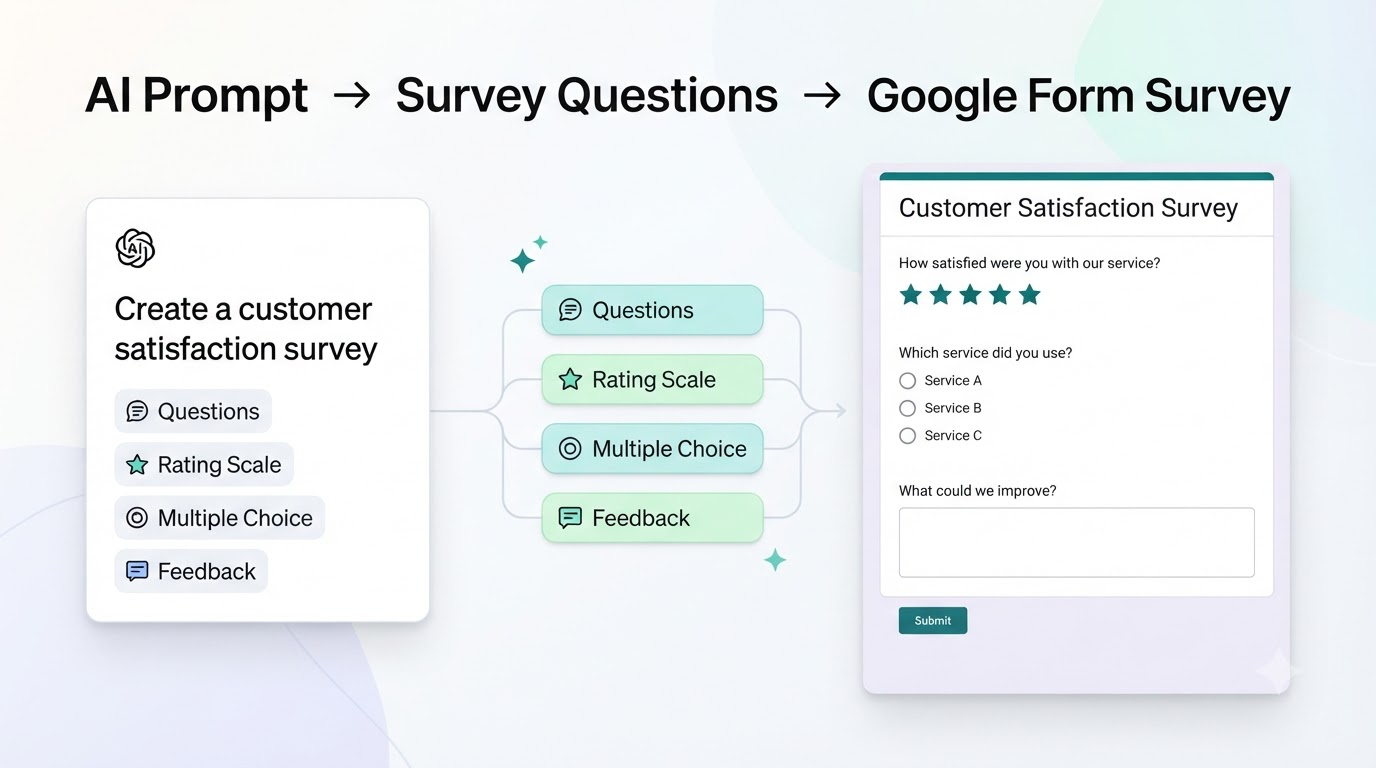
Creating a Google Form survey manually is simple enough. The harder part is creating a survey with useful questions, clear wording, and the right answer types.
You have to decide what you want to learn, which questions to include, and how to organize them. For a detailed survey, this can take much longer than expected.
AI can make the process easier.
Google Forms includes Gemini features that can help generate forms from a description. Instead of starting with a blank survey and adding every question yourself, you can describe what you want and use AI to create the initial structure.
Here's how the process works.
Start With Gemini in Google Forms
The first step is to check whether your Google account has access to Gemini features in Google Forms.
Google has added AI features to Workspace, including "Help me create a form." Availability depends on the Google account and Workspace plan, so the option may not appear for everyone.
Once you have access, open Google Forms and create a new form.
You can also type forms.new directly into your browser to open a new Google Form.
If Gemini is available for your account, you'll see the option to use AI to help create the survey.
Describe the Survey You Want
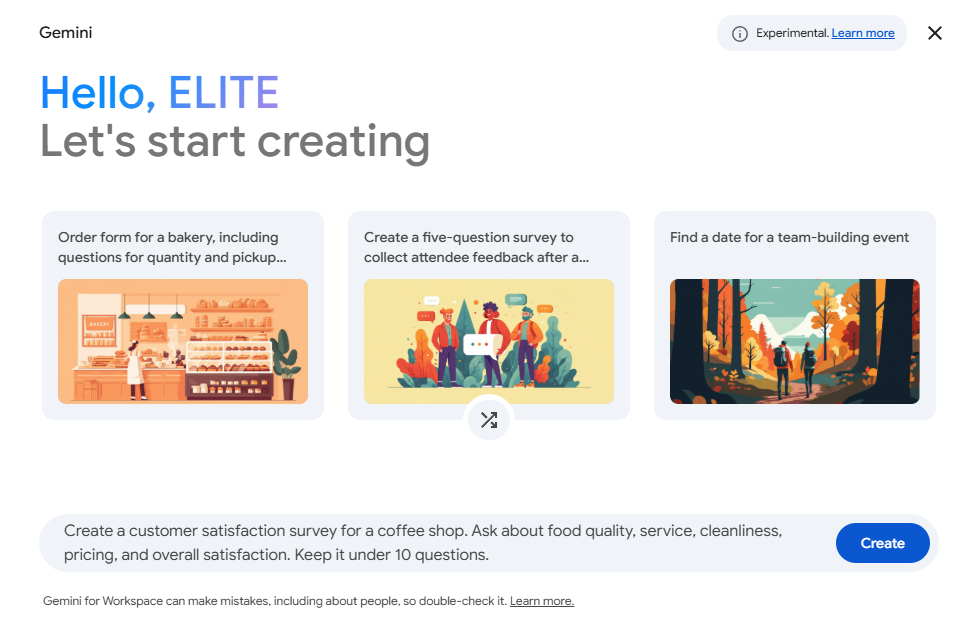
Instead of adding survey questions one by one, describe what you want in a prompt.
For example:
Create a customer satisfaction survey for a coffee shop. Ask about food quality, service, cleanliness, pricing, and overall satisfaction. Keep it under 10 questions.
You can also provide more detail:
Create an employee onboarding survey for a remote software company. Ask about the onboarding experience, training, communication, equipment, and areas for improvement.
The important part is to explain the purpose of the survey and the information you want to collect.
A detailed prompt gives AI more context and gives you a better starting point.
Let AI Create the First Draft
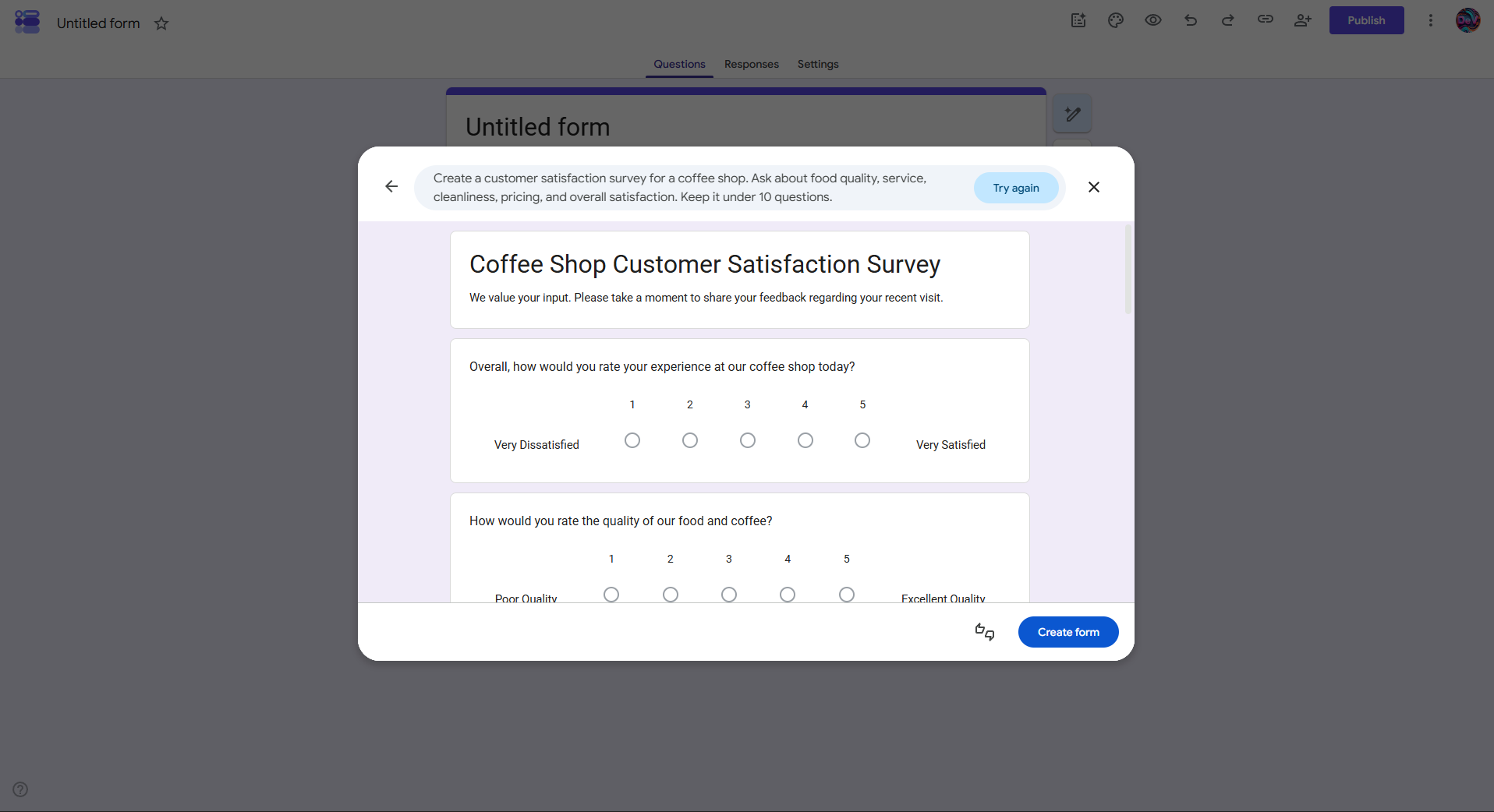
Once you submit your prompt, Gemini can generate a survey structure based on what you described.
Depending on the survey, this can include questions, answer choices, and different question types.
For example, a customer satisfaction survey might include:
• Customer name
• Overall satisfaction rating
• Food quality rating
• Service rating
• Pricing feedback
• What could be improved?
Instead of deciding what to add next, you have a complete first draft to review.
Review the Survey Questions
AI gives you a starting point. You still need to review the questions before sharing the survey.
Look for questions that are:
• Repetitive
• Too long
• Unclear
• Unrelated to the survey goal
You can also ask Gemini to make changes.
For example:
Remove the repetitive questions and keep the survey under 8 questions.
Or:
Add two questions about customer service and make the wording simpler.
You can keep refining the survey through prompts instead of rebuilding the entire form manually.
Create the Survey Form
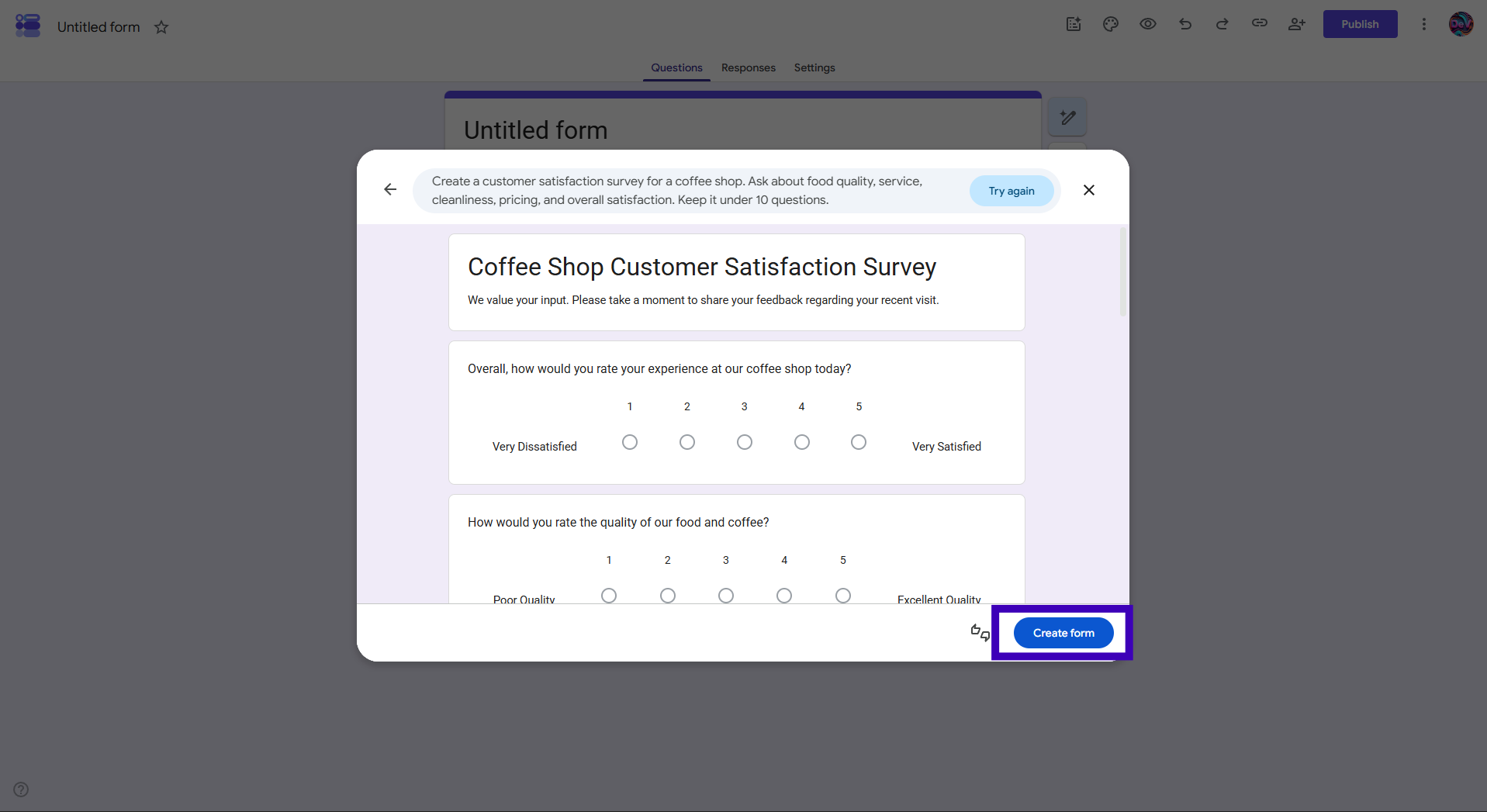
Once the generated draft looks right, click Create form.
This turns the generated draft into your Google Survey Form.
You can then make normal changes to the form, including editing questions, changing answer options, and adjusting other settings.
Customize the Survey Form
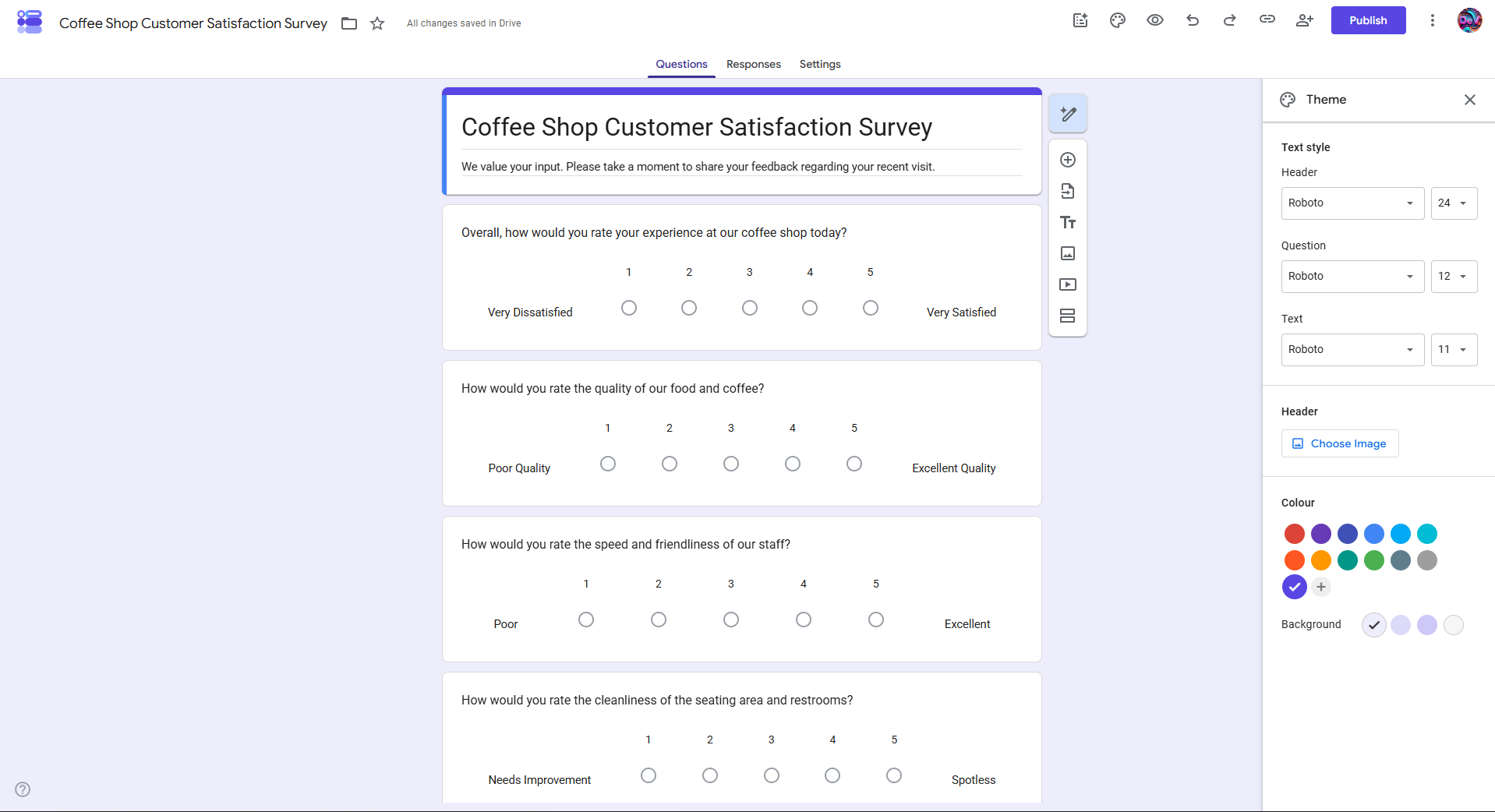
After the questions are ready, customize the form so it fits your purpose.
You can adjust things such as:
• Theme
• Colors
• Header
• Fonts
• Question settings
Keep the design simple and make sure the questions are easy to understand.
Publish and Share the Form
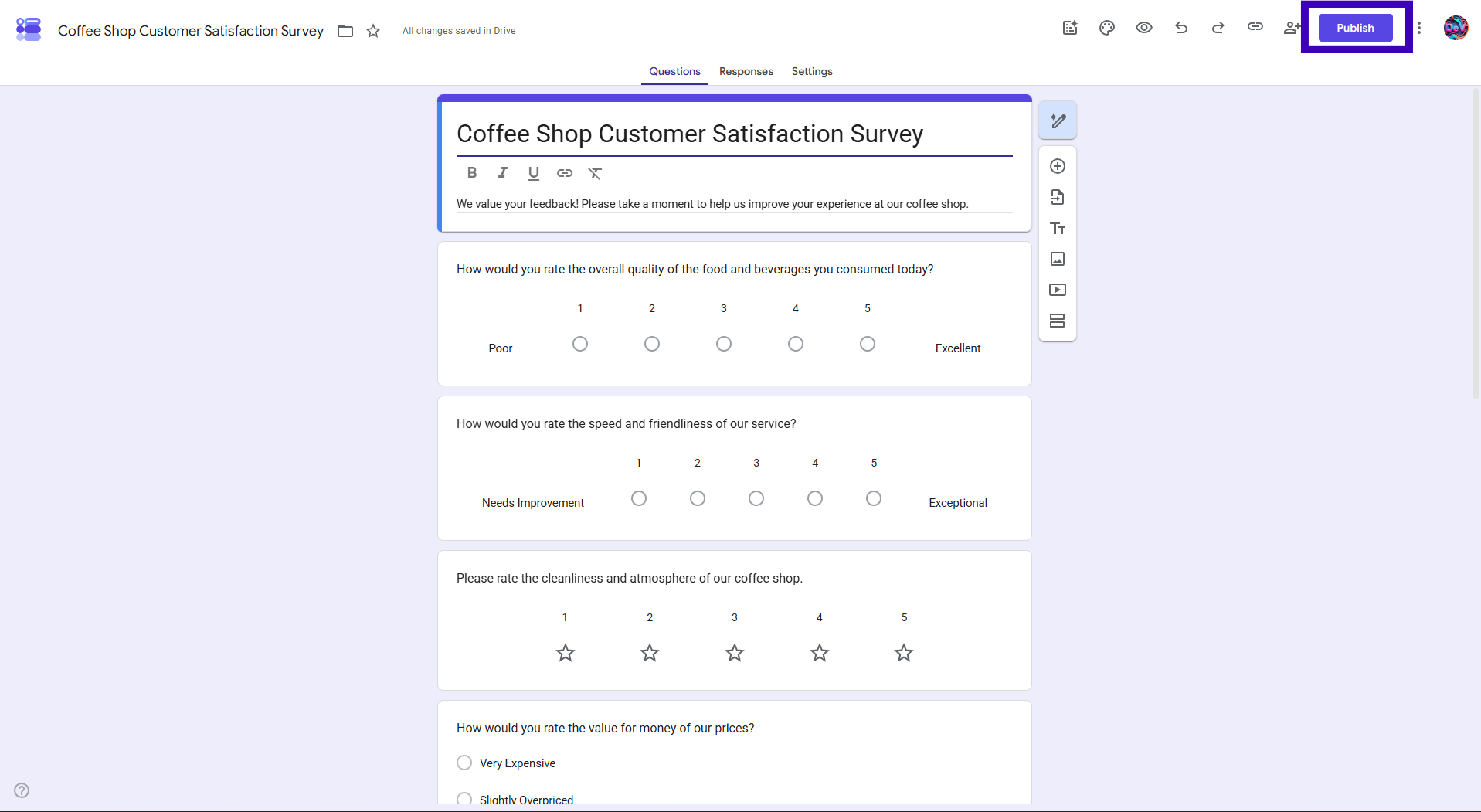
When your form is ready, review the responder access settings.
Make sure the people you want to reach can actually open and complete it.
Google's current Forms workflow uses Publish to make the form available to responders, after which you can copy the responder link and share it.
You can share the form through:
• Website
• Social media
• Messaging apps
What If You Don't Have Gemini?
Not every Google account has access to the same Gemini features.
If you don't see the AI form creation option, you can still use another AI assistant to prepare your survey before building it in Google Forms.
For example, you can ask AI to create:
• Survey title
• Introduction
• Questions
• Answer choices
• Question types
• Question order
You can then take that structure and add it to Google Forms.
Another option is an AI form builder. Instead of using AI only to generate survey questions, an AI form builder can generate the actual form from your prompt.
Platforms like Simplagents use this approach. You can describe the survey you need, generate the fields, customize them, and publish the finished survey.
What Survey Form Would You Like To Create?
Describe your survey in plain English, and build a survey form in seconds.
The Simple Workflow
The process can be reduced to five steps:
Describe the survey → Generate the draft → Review the questions → Customize → Publish
Instead of starting with an empty Google Form, you start with an AI-generated survey draft.
You still make the final decisions, but you spend less time creating every question and field manually.
Final Thoughts
AI can make the initial survey creation process faster, but you still need to decide what you want to learn from your respondents.
Start with a clear goal, give AI enough context, review the questions it creates, and remove anything you don't need.
Once the survey is ready, customize the design, check the settings, and publish it.
For simple surveys, this can turn a blank Google Form into a usable survey with much less manual work.