How to Create a Google Form
Created: 30/07/2026
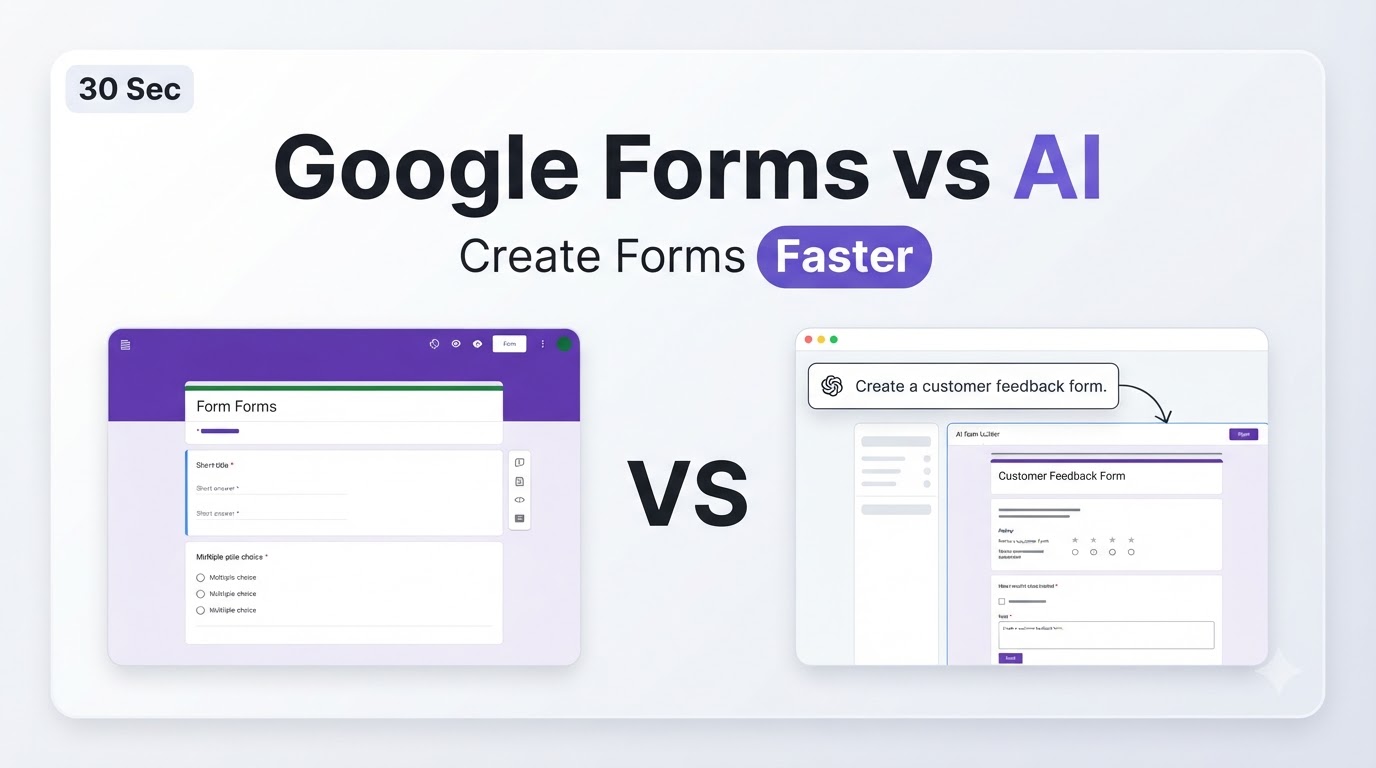
Google Forms is a popular tool for creating surveys, quizzes, registration forms, and questionnaires. You can build a form in a few minutes, share it with others, and collect responses in one place.
If you want more control over your questions or prefer to create forms by describing what you need, AI form builders such as Simplagents can save time by generating the form for you.
Open Google Forms
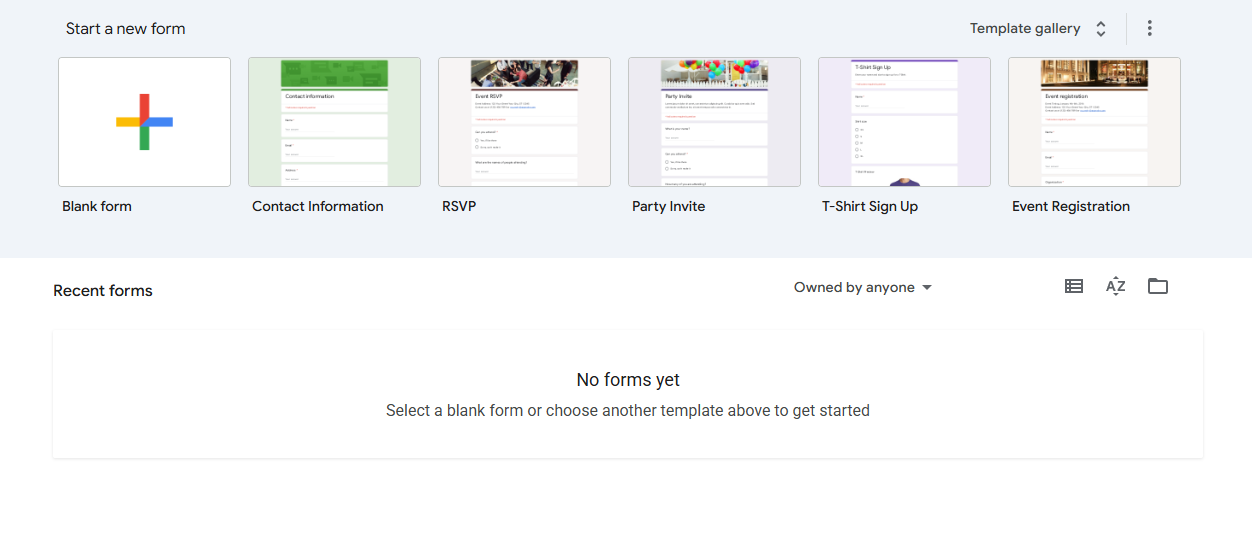
Go to Google Forms and sign in with your Google account.
Click Blank Form to start from scratch, or choose one of the available templates.
Add a Title and Description
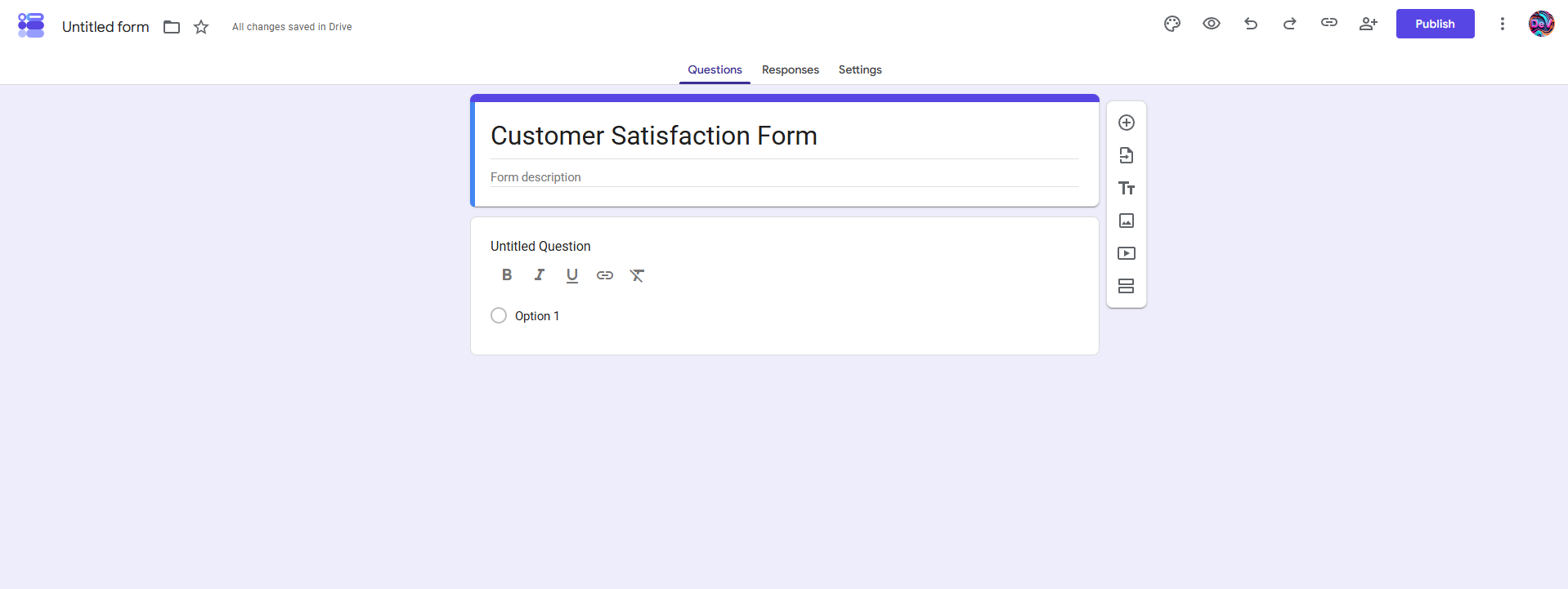
Give your form a clear title so respondents know its purpose.
For example:
• Customer Feedback Form
• Event Registration Form
• Job Application Form
• Product Survey
Add a short description explaining why you're collecting the information.
Add Your Questions
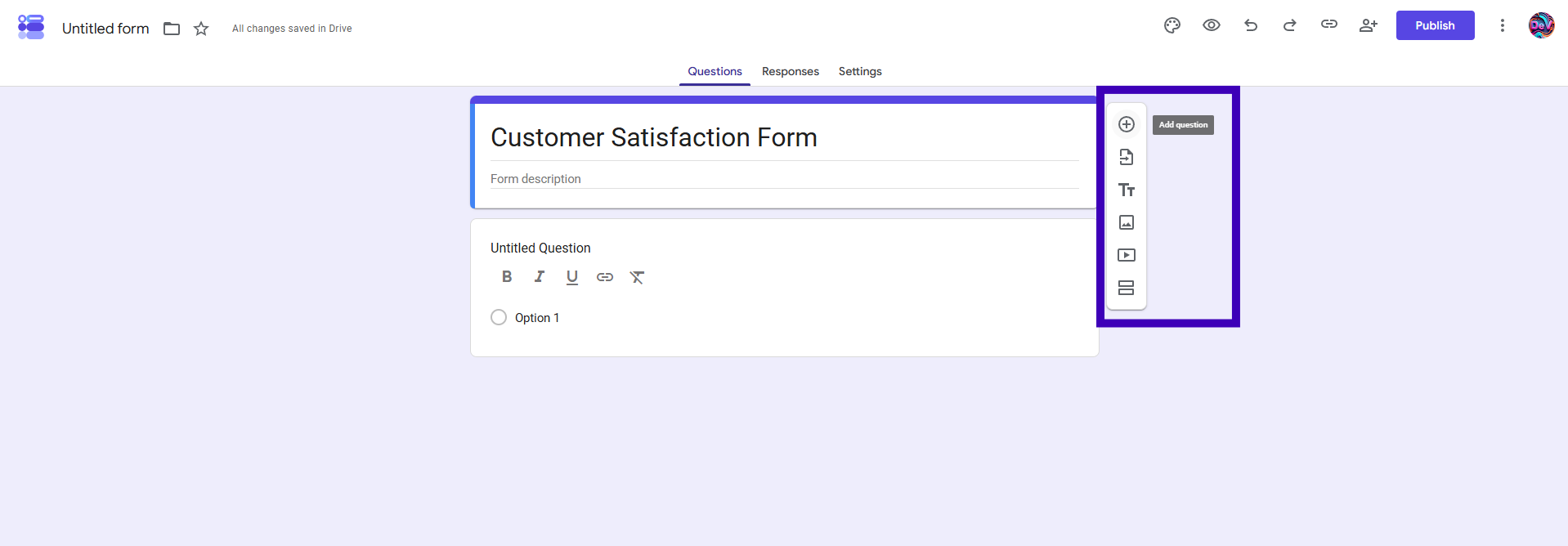
Click the + button to add questions.
Google Forms supports several question types, including:
• Short answer
• Paragraph
• Multiple choice
• Checkboxes
• Dropdown
• Linear scale
• Multiple choice grid
• Date
• Time
• File upload
Choose the format that matches the information you want to collect.
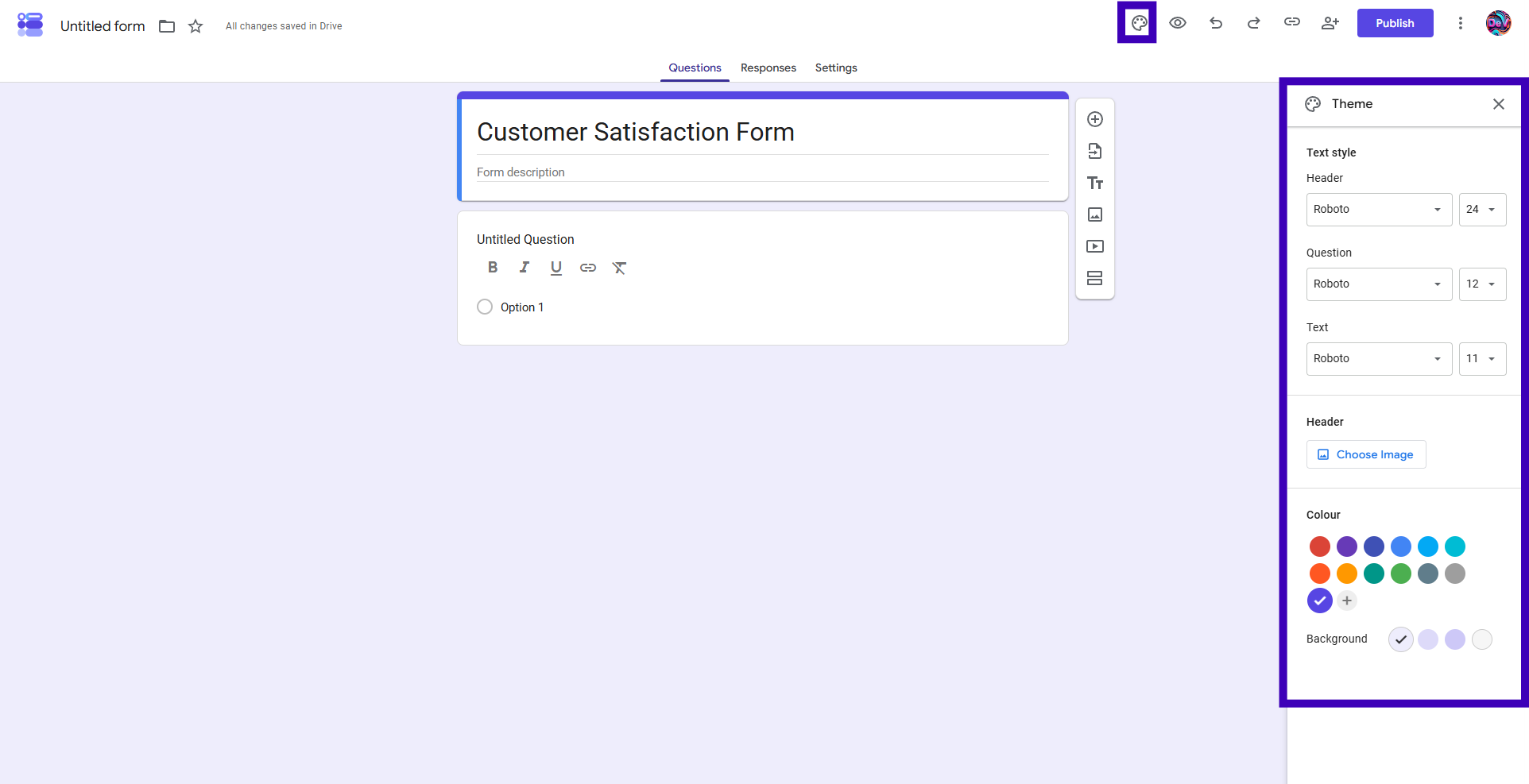
Customize Your Form
You can change:
• Theme color
• Header image
• Font style
• Confirmation message
• Required questions
A clean and simple form is usually easier for people to complete.
Share Your Form
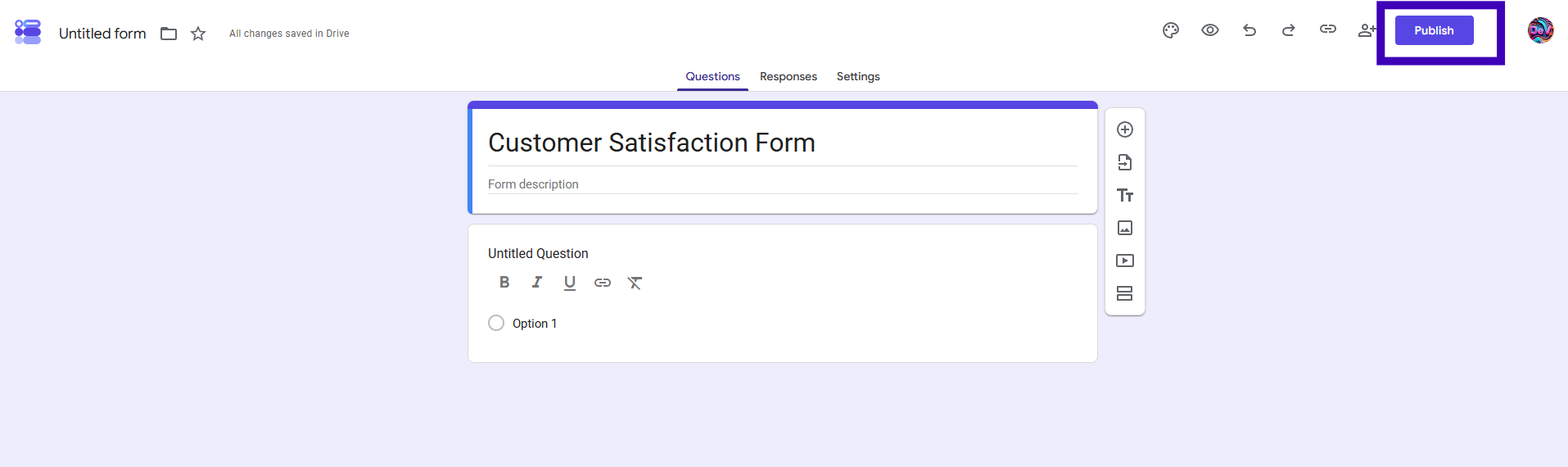
When your form is ready, click Publish.
You can share it on:
• Link
• Embedding it on a website
Responses are collected automatically inside Google Forms.
Common Mistakes When Creating Google Forms
Even though Google Forms is simple to use, avoiding these common mistakes can help you collect better responses.
Adding Too Many Fields
Long forms can discourage people from completing them. Only include fields that are necessary.
Using Unclear Labels
Confusing field names can lead to inaccurate responses. Keep your questions simple and specific.
Making Every Field Required
Only require the information you truly need. Too many required fields can increase form abandonment.
Forgetting to Preview
Always preview your form before sharing it to catch errors and check the user experience.
Not Testing on Mobile
Review your form on both desktop and mobile devices to make sure it works well for all users.
Poor Form Organization
Group related questions together and use sections for longer forms. A well organized form is easier to complete and improves response quality.
Tips for Creating Better Google Forms
A well-designed Google Form is easier to complete and helps you collect more accurate responses. Here are a few best practices to follow.
Keep Your Form Short
Only ask for information you actually need. Shorter forms usually have higher completion rates.
Use Clear Field Labels
Write simple and descriptive labels so respondents know exactly what information to provide.
Group Similar Questions
Arrange related questions together to make the form easier to follow, especially if it contains multiple sections.
Only Require Important Fields
Mark only essential questions as required. This gives users more flexibility and improves the overall experience.
Test Before Sharing
Preview your form to check that all fields, required questions, and confirmation messages work as expected.
Optimize for Mobile
Many people complete forms on their phones. Make sure your form is easy to read and complete on smaller screens.
Create a Form with AI Instead
Building every question manually works well for simple forms. If you already know what information you need, you can create the entire form with AI.
For example, type:
Create a customer feedback form for an online clothing store with product ratings, delivery feedback, customer support questions, and an optional comments section.
Simplagents generates the form in seconds. You can edit every question, customize the design, and publish it immediately.
Create Any Form with AI
Describe the form you want, and AI will generate a complete form in seconds. Customize it, edit the questions, and publish it when you're ready.
Why Use AI to Create Forms?
Creating forms with AI helps you:
• Save time
• Generate relevant questions
• Customize forms quickly
• Create surveys, quizzes, and registration forms from a simple prompt
• Edit everything before publishing
You stay in control while AI handles the first draft.
Start Creating Forms
Google Forms is a good choice for creating simple forms manually. If you want to create forms faster, describe what you need and let Simplagents generate the form with AI. Review the questions, make changes if needed, and publish your form in minutes.
Templates for absolutely anything
Use ready-made template patterns customized for support, lead generation, sales, and operations.