How to Create a Survey on Google Forms
Created: 30/07/2026
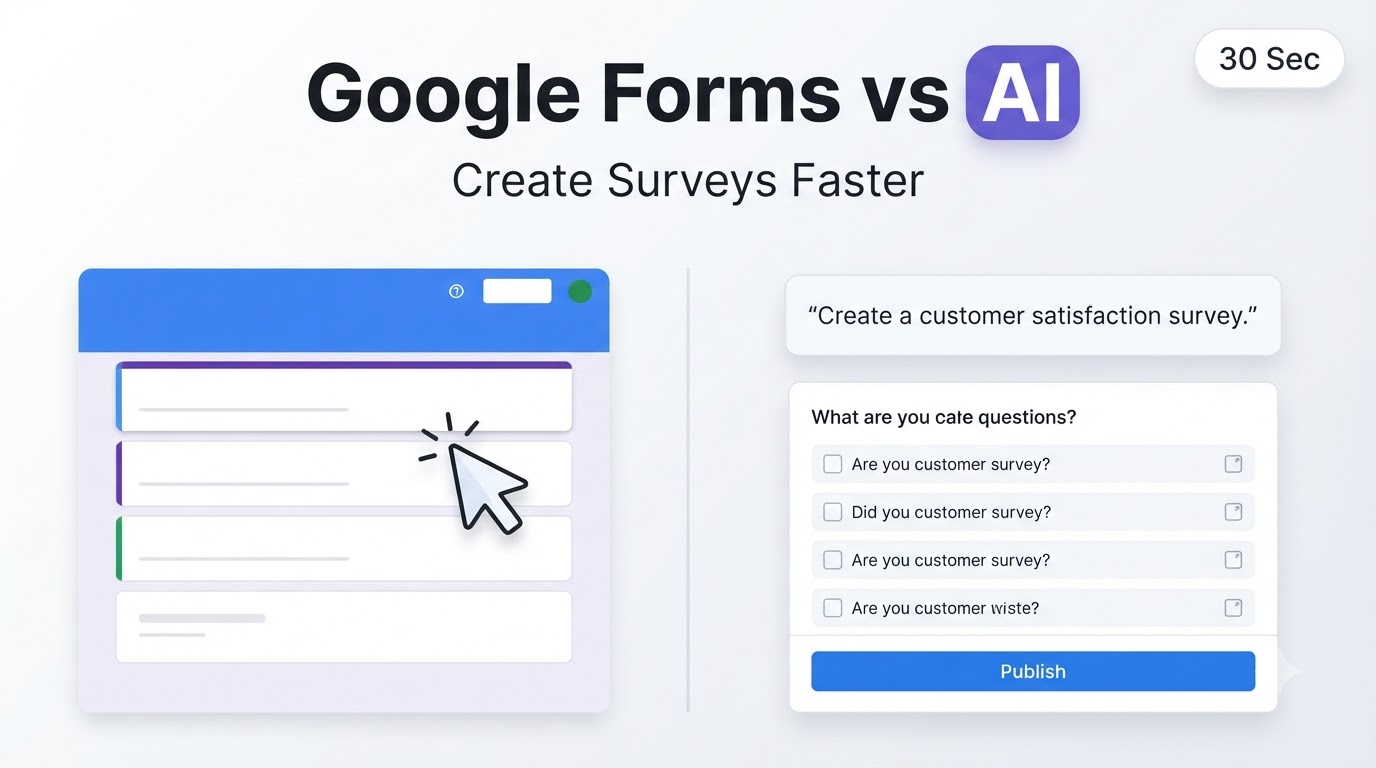
Google Forms is a simple tool for creating surveys. You can build a survey from scratch, share it with participants, and collect responses in one place.
If you want to create a survey faster, AI form builders like Simplagents can generate survey questions from a single prompt. You can then edit the questions before publishing.
Open Google Forms
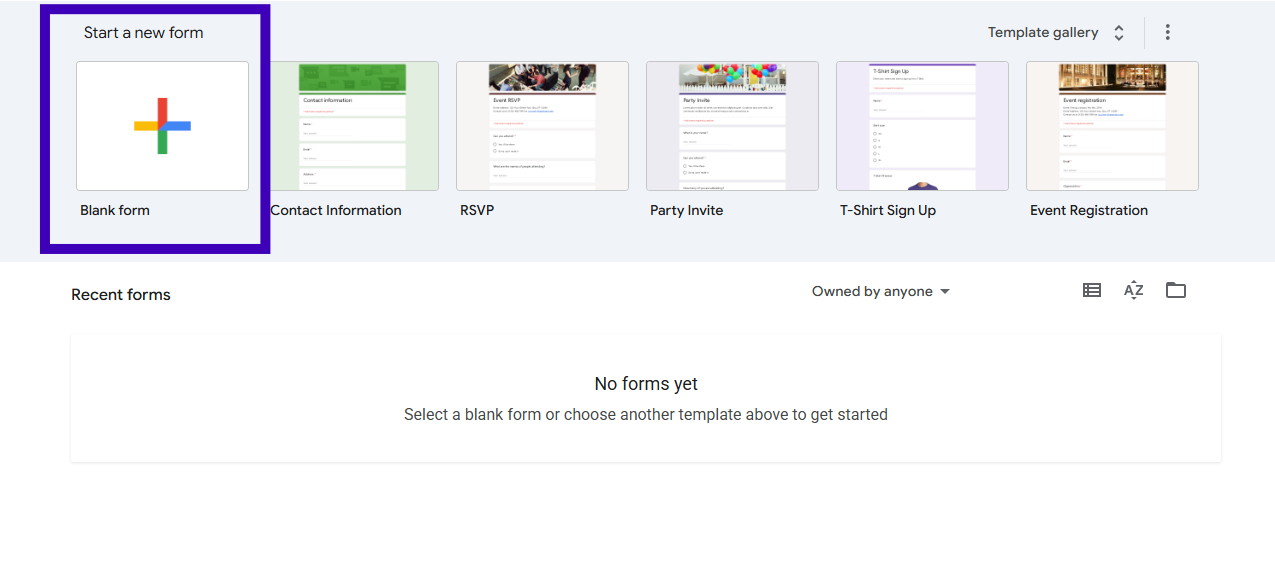
Sign in to your Google account and open Google Forms.
Click Blank Form to create a new survey, or choose a template if one matches your needs.
Add a Survey Title
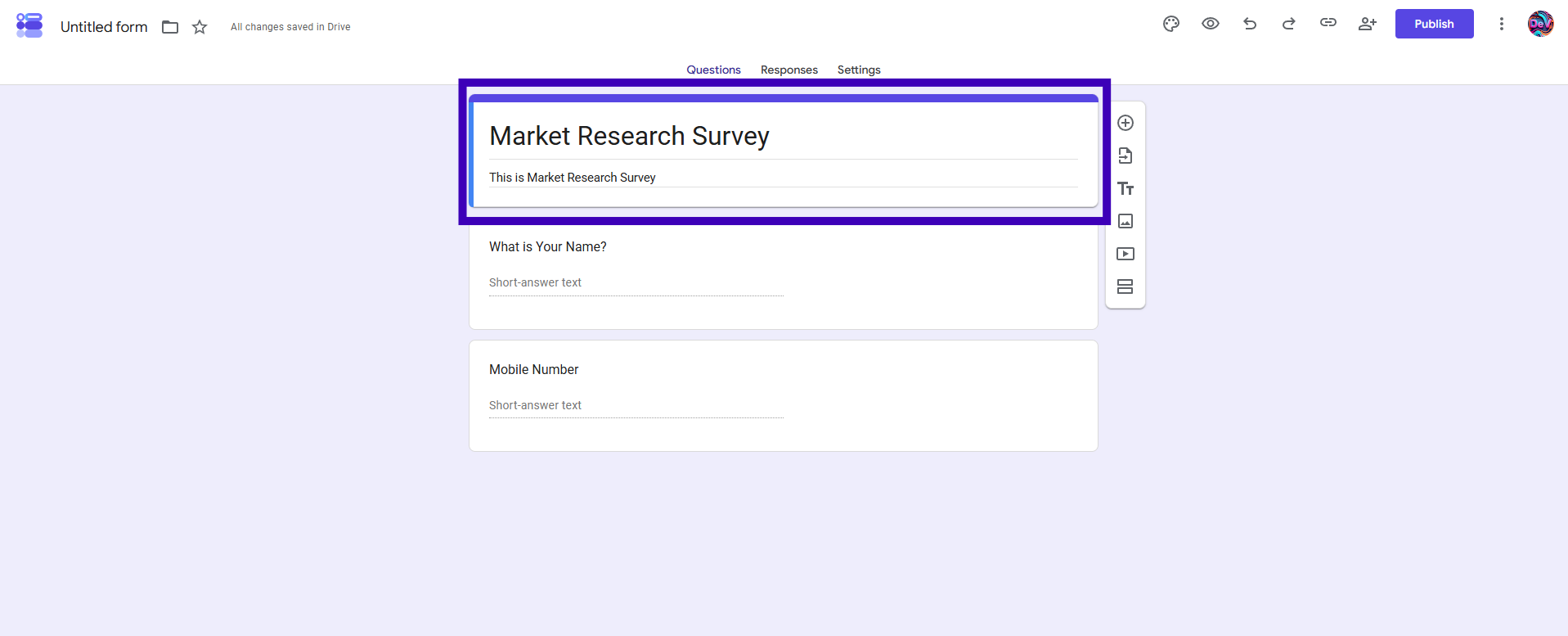
Give your survey a title that clearly explains its purpose.
Examples include:
• Customer Satisfaction Survey
• Employee Engagement Survey
• Market Research Survey
• Event Feedback Survey
Add a short description so respondents know why you're collecting feedback.
Add Your Survey Questions
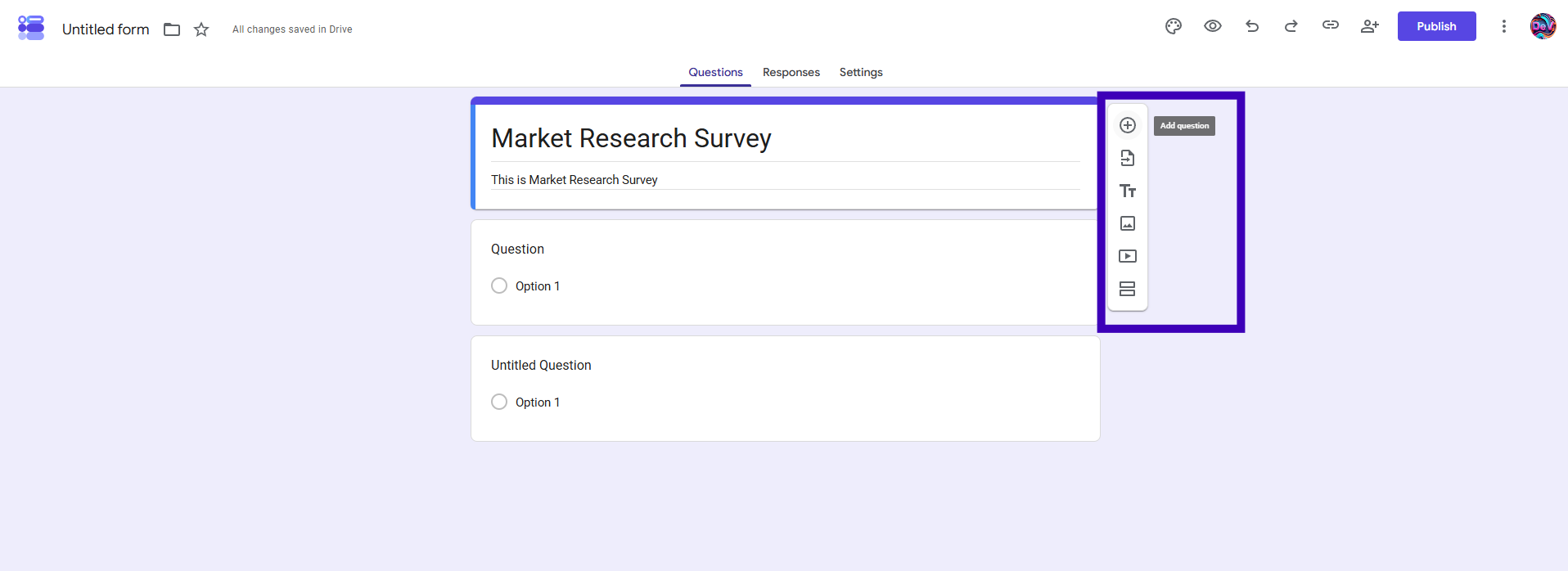
Click the + button to add questions.
Google Forms supports several question types, including:
• Multiple choice
• Checkboxes
• Dropdown
• Short answer
• Paragraph
• Linear scale
• Multiple choice grid
• Date
• Time
Choose question types that make sense for the information you want to collect.
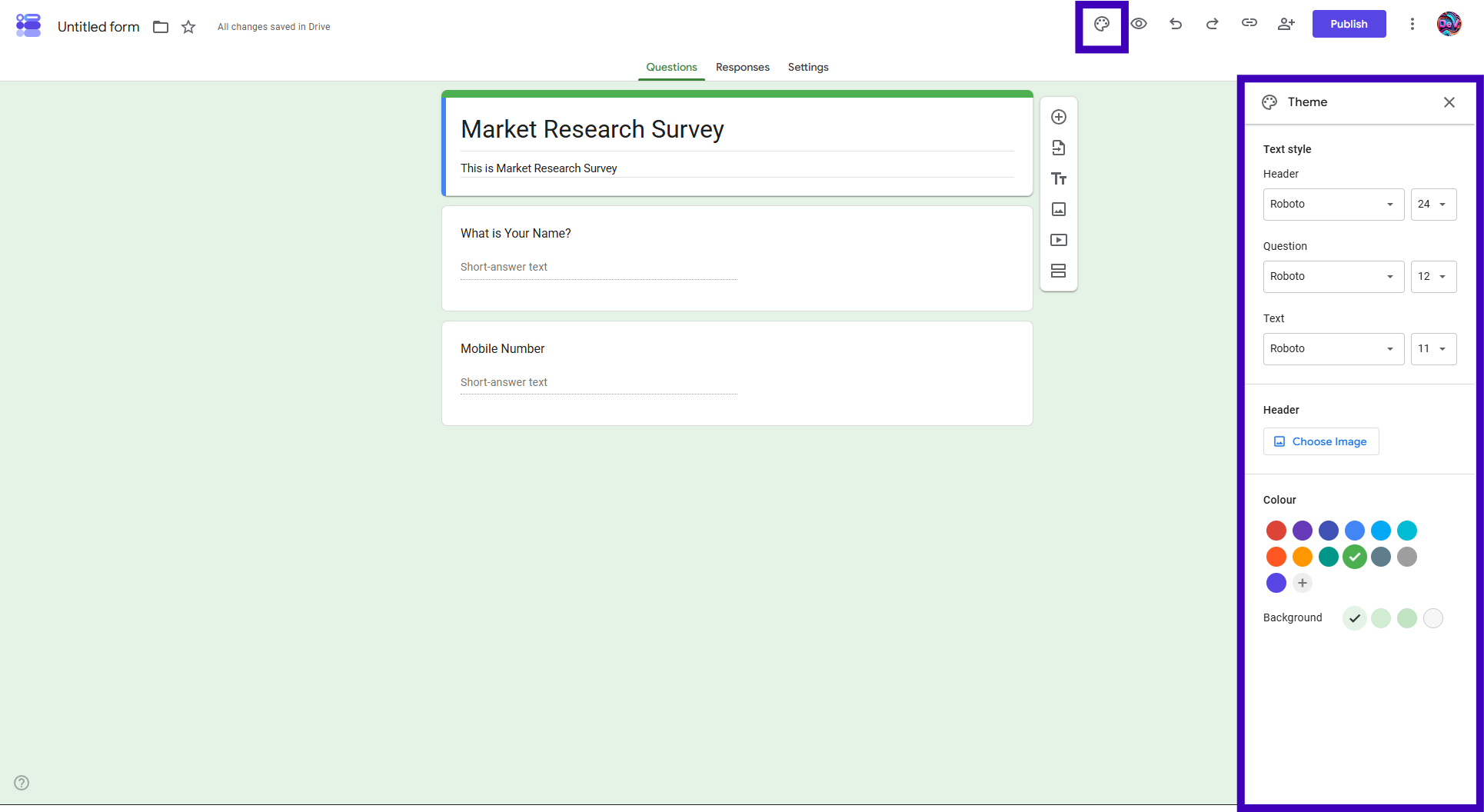
Customize the Survey
Google Forms lets you change:
• Theme color
• Header image
• Font style
• Required questions
• Confirmation message
Keep the survey simple so respondents can complete it quickly.
Share Your Survey
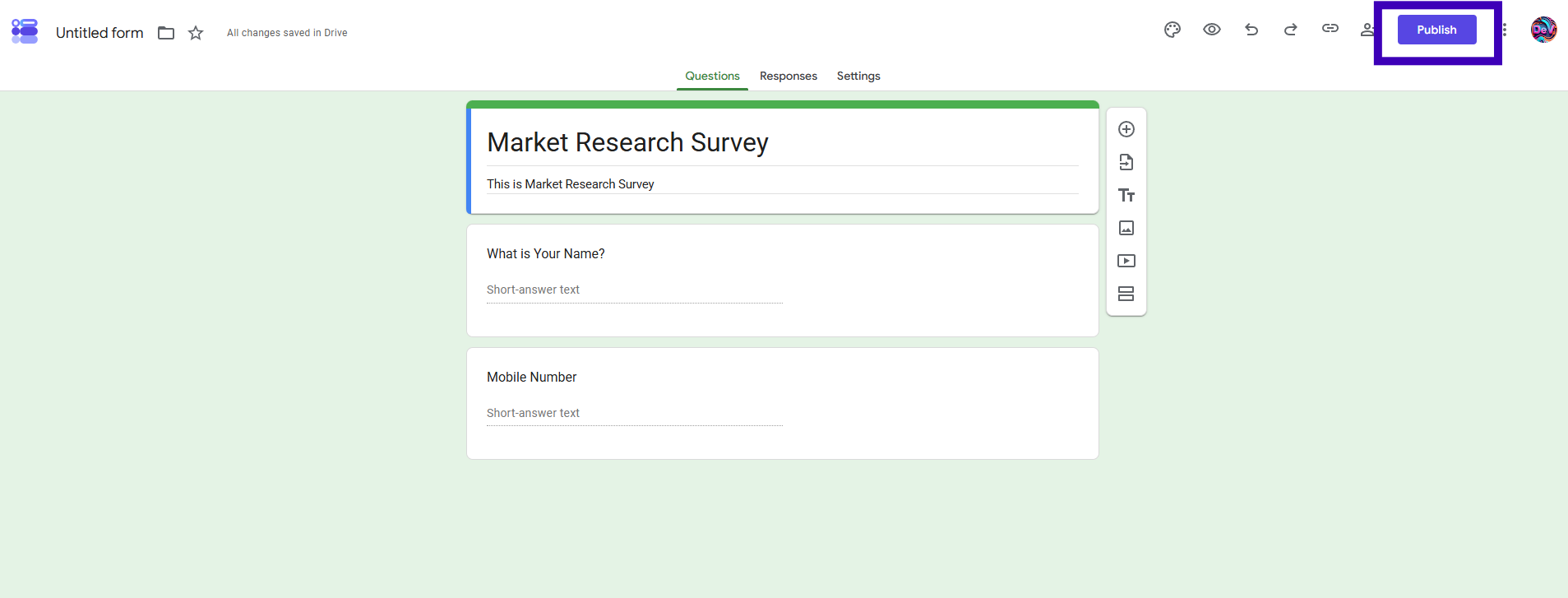
When you're ready, click Publish.
You can share your survey through:
• Direct link
• QR code
• Embedded website form
Responses appear automatically inside Google Forms.
Common Mistakes When Creating Google Forms
Even though Google Forms is easy to use, a few common mistakes can affect your response rate and the quality of the data you collect.
Asking Too Many Questions
Long surveys can discourage people from completing them. Include only questions that support your goal.
Using Confusing Wording
Keep your questions simple and easy to understand. Avoid asking two things in one question or using technical language.
Making Every Question Required
Only make essential questions required. Too many required fields can cause respondents to leave the survey.
Forgetting to Preview
Always preview your survey before sharing it. This helps you catch mistakes and check that everything works correctly.
Not Testing on Mobile
Many people complete surveys on their phones. Test your Google Form on mobile to make sure it's easy to use.
Using Too Many Paragraph Questions
Paragraph questions are useful for detailed feedback, but using too many can make the survey feel time-consuming. Use multiple choice or rating questions whenever possible.
Not Using Sections for Long Surveys
If your survey has many questions, divide it into sections. This makes the survey easier to follow and less overwhelming for respondents.
Tips for Creating Better Surveys
A well-designed survey usually gets more responses.
Some best practices include:
• Keep surveys as short as possible.
• Ask one question at a time.
• Use simple language.
• Only make important questions required.
• Test the survey before sharing.
• End with a thank you message.
Small improvements like these can increase your response rate and improve the quality of the data you collect.
Create a Survey with AI Instead
Writing survey questions takes time. You have to decide what to ask, choose the right question types, and make sure the survey flows naturally.
With Simplagents, you start with a prompt instead.
For example, type:
Create a customer satisfaction survey for an online clothing store with questions about product quality, delivery, customer support, shopping experience, and overall satisfaction.
AI generates the survey in seconds. You can review every question, make changes, customize the design, and publish it immediately.
What survey agent would you like to create?
Describe the survey you need, and AI will generate relevant questions in seconds. Review, customize, and publish your survey when it's ready.
Google Forms or an AI Survey Builder?
Google Forms is a reliable option if you prefer creating surveys manually and already use Google's ecosystem.
If your priority is creating surveys faster, an AI survey builder can reduce the time spent writing questions. Instead of building every question yourself, you describe your survey and edit the generated draft before publishing.
Both approaches let you create professional surveys. The best choice depends on whether you prefer manual creation or AI-assisted drafting.
Start Creating Surveys
Whether you're collecting customer feedback, running market research, or planning an event, a good survey starts with clear questions. Create your survey manually in Google Forms or use Simplagents to generate a complete survey with AI in minutes.
Templates for absolutely anything
Use ready-made template patterns customized for surveys, lead generation, sales, and operations.