How to Create a Google Form With Code Using ChatGPT
Created: 08/09/2026
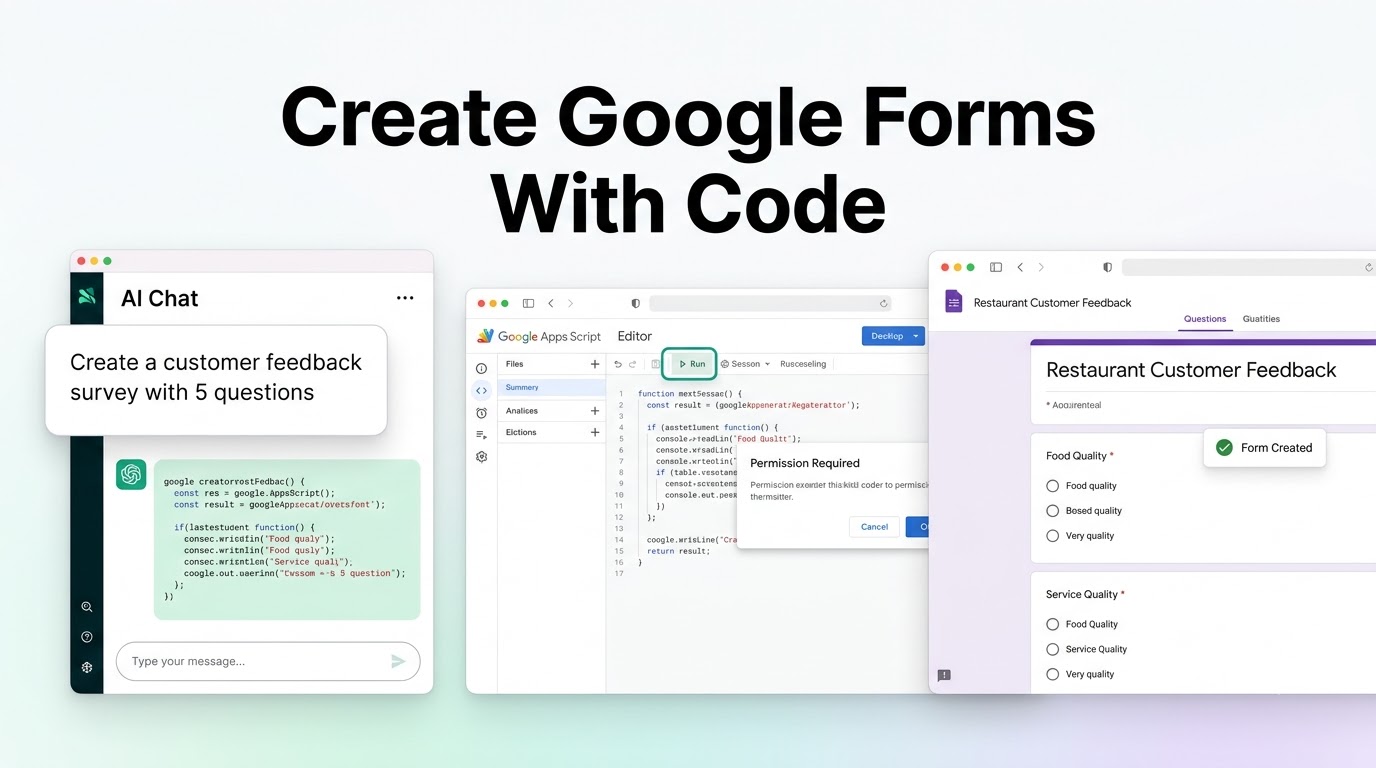
Creating a Google Form manually is simple when you only need a few questions. But if you want a complete form with the right questions, answer options, descriptions, and settings, creating everything yourself can take more time.
One way to speed this up is to use ChatGPT to generate Google Apps Script code and then run that code inside Google Forms.
The process is straightforward:
Create a Google Form → Open Apps Script → Generate or write the code → Run it → Get your completed form
Here is how to do it.
Step 1: Open Google Forms
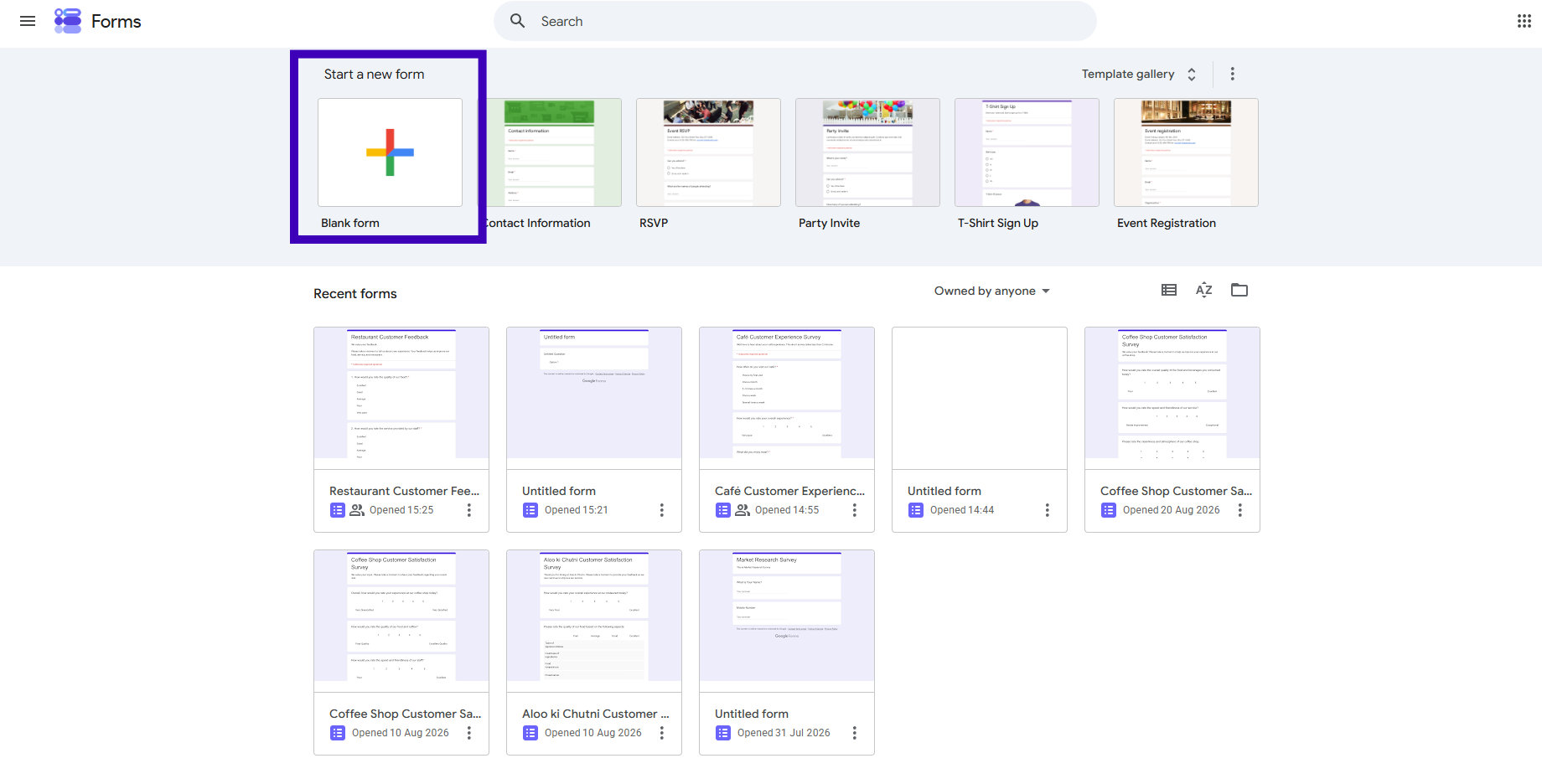
First, go to Google Forms and open your Forms dashboard.
You can create a new form from the dashboard and use it as the starting point for the process.
Step 2: Create a New Form
Click Blank form to create a new Google Form.
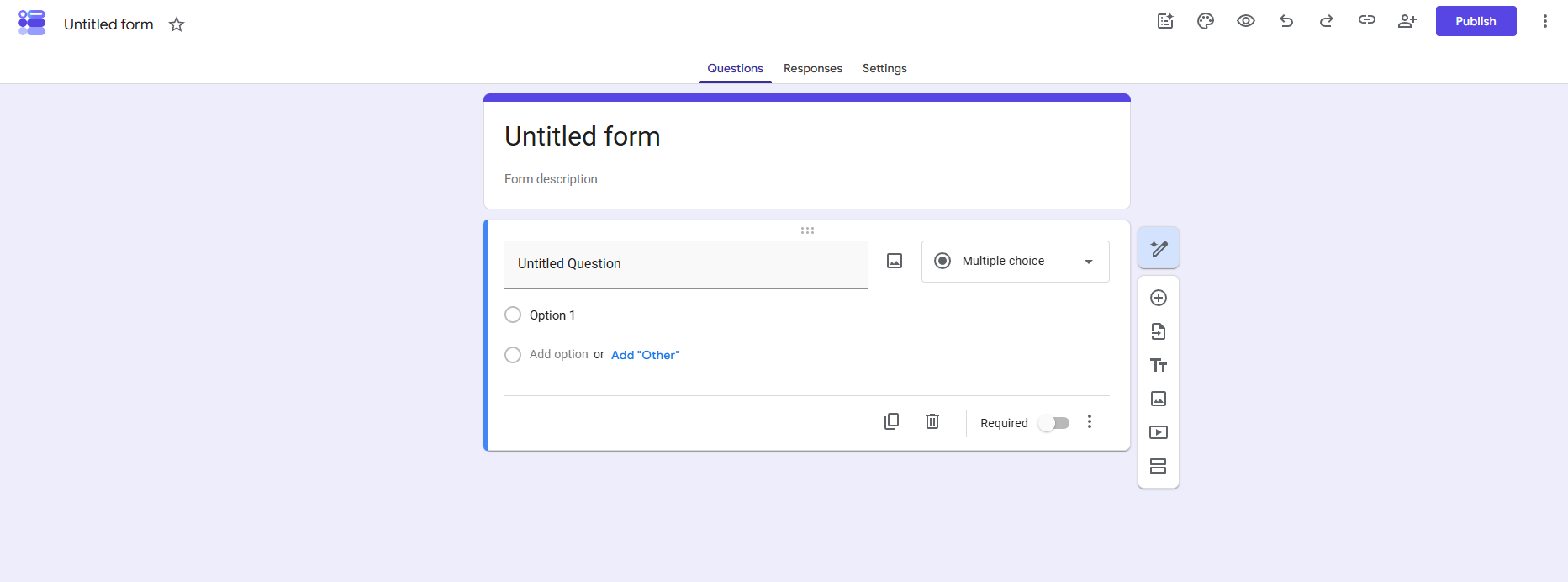
You will see an empty form with a title and an initial question. You don't need to manually create all the questions because the Apps Script code will do that for you.
Step 3: Open Apps Script
Once your new form is open, look at the three dots in the top right corner.
Click the three dots to open the menu.
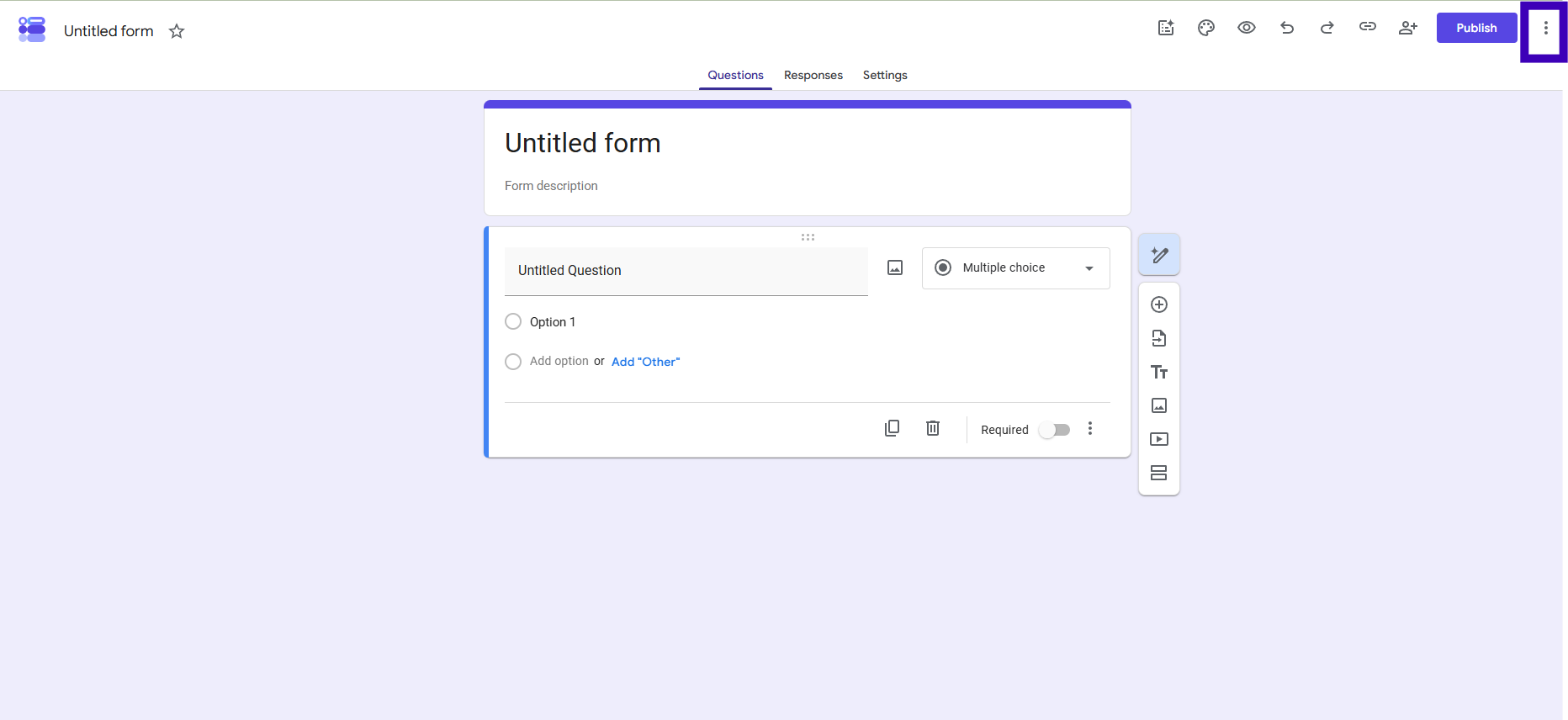
From the menu, select Apps Script.
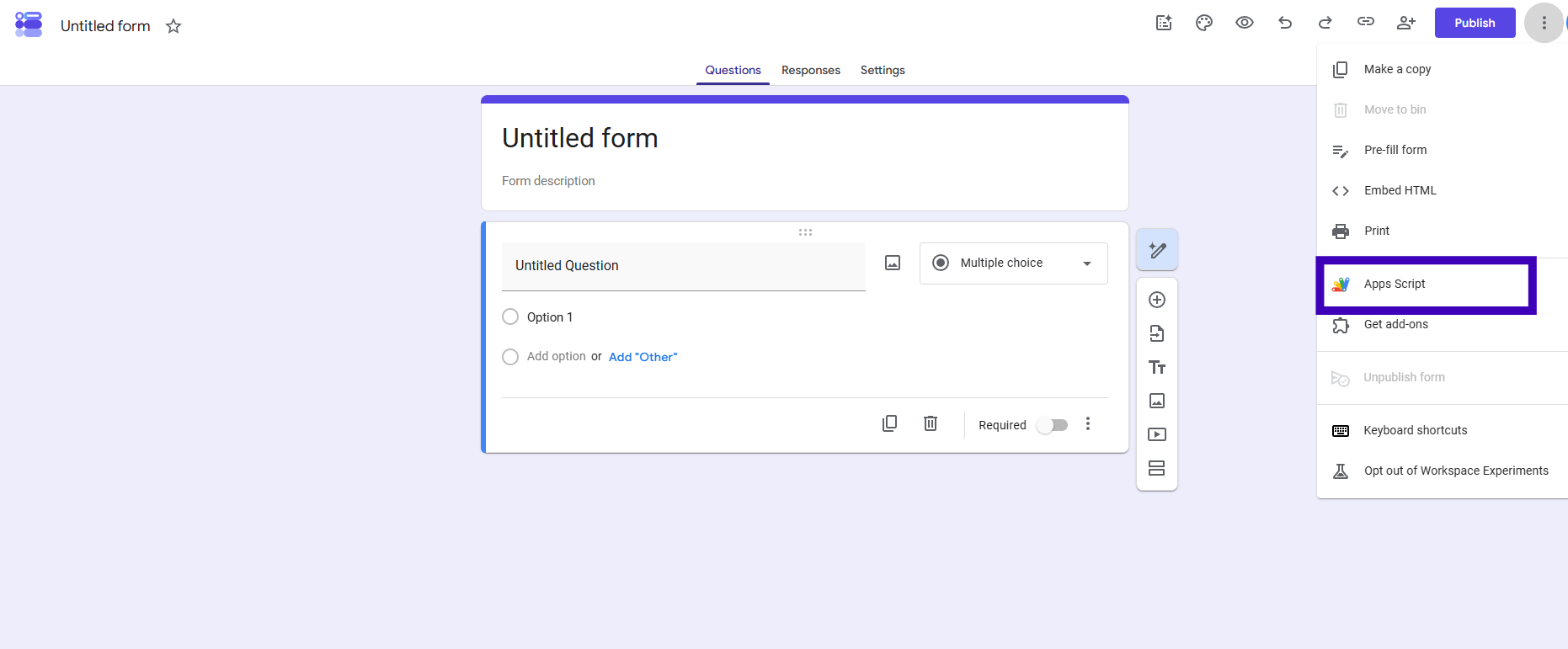
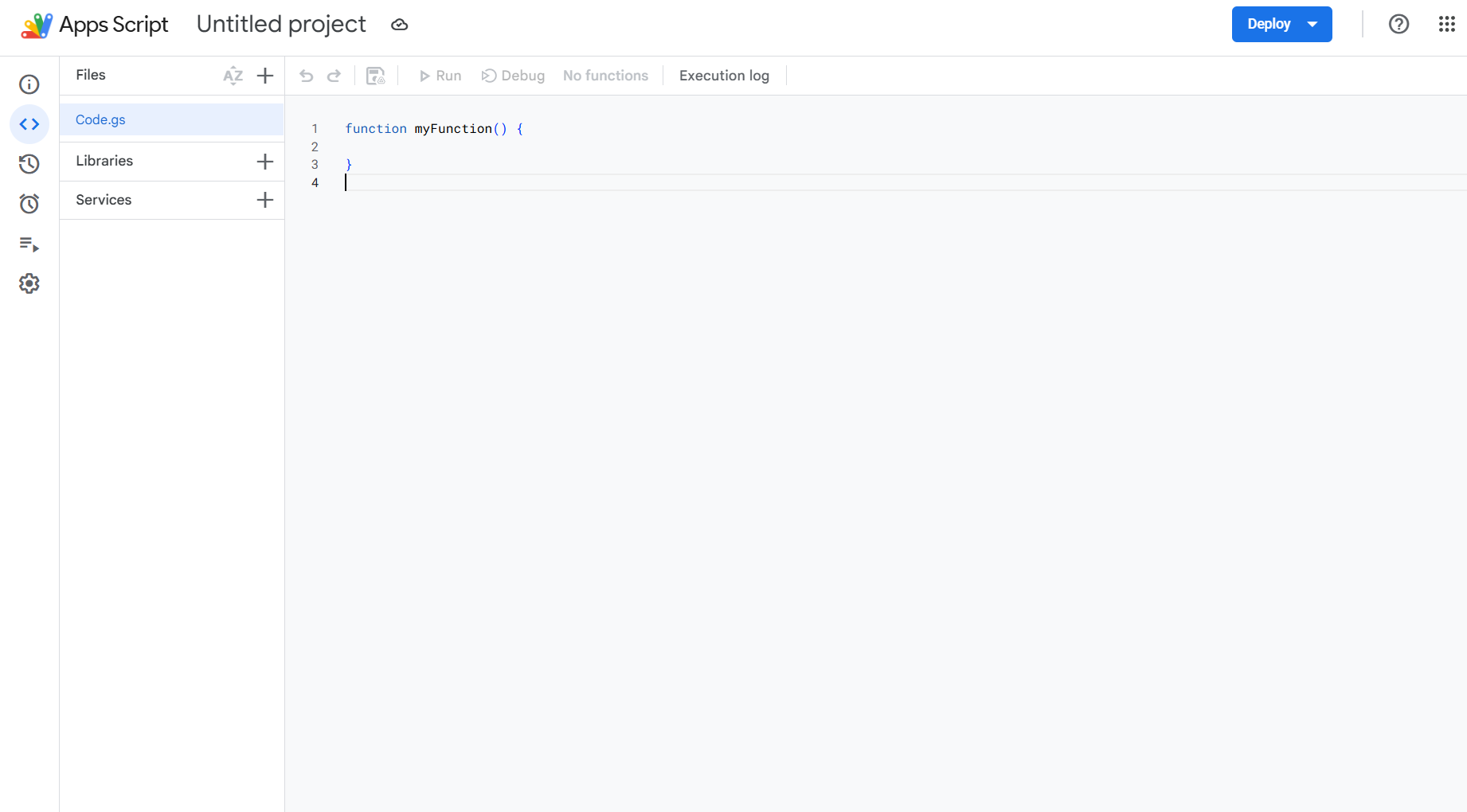
This opens the Google Apps Script editor in a new tab. This is where you can add code that creates and manages your Google Form.
Step 4: Ask ChatGPT to Generate the Code
You can write the Apps Script yourself if you know how to code. If you don't, ChatGPT can create it for you.
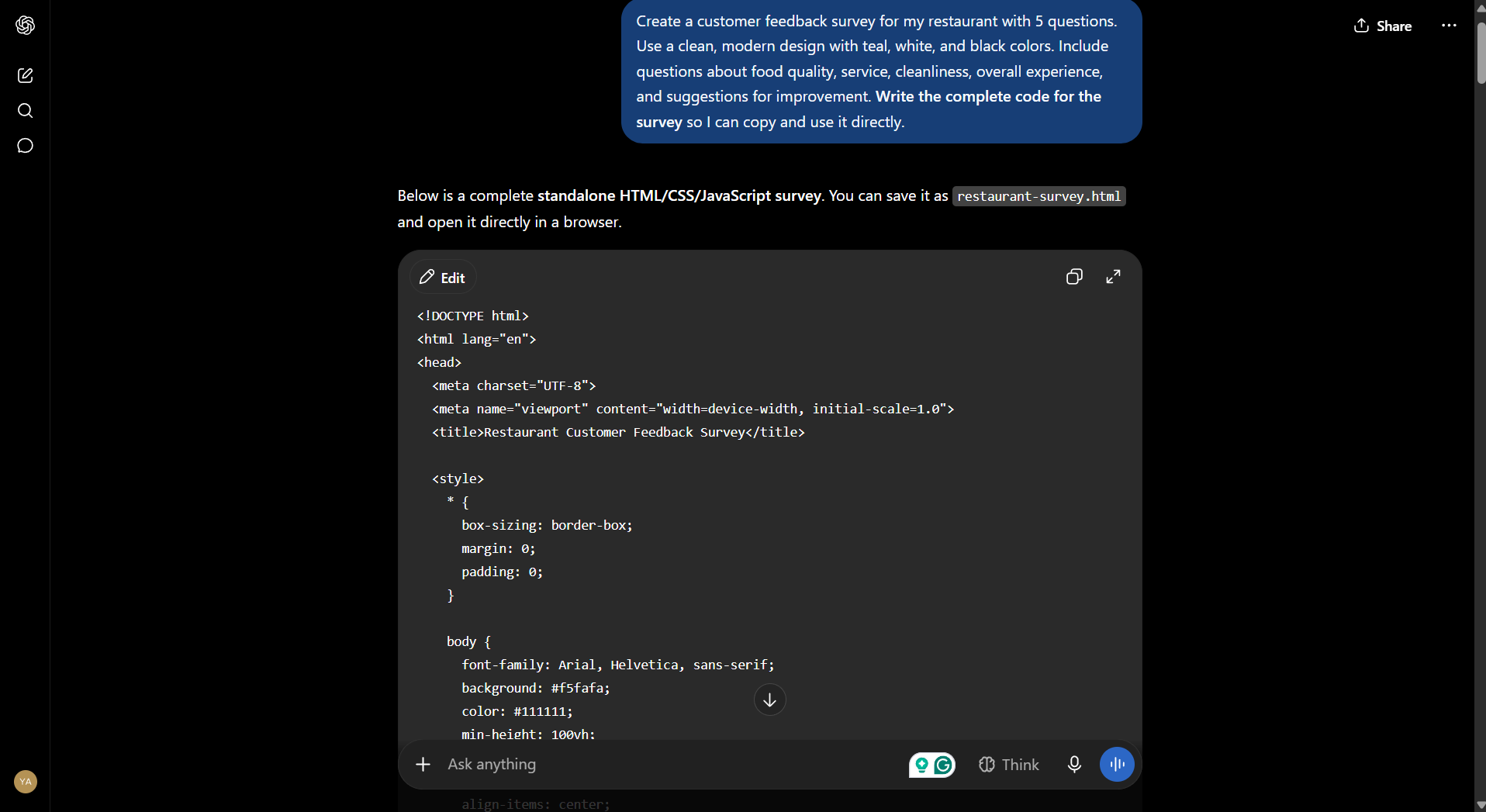
For example, you can give ChatGPT this prompt:
Create a customer feedback survey for my restaurant with 5 questions. Use a clean, modern design with teal, white, and black colors. Include questions about food quality, service, cleanliness, overall experience, and suggestions for improvement. Write the complete code for the survey so I can copy and use it directly.
ChatGPT can then generate the Google Apps Script code based on your requirements.
Make sure you ask for Google Apps Script code if you want to run it inside the Apps Script editor.
Step 5: Delete the Existing Code
When you first open Apps Script, you may see some code already written in the editor, such as:
function myFunction() { }
You don't need to keep this code for your new form.
Select the existing code and delete it.
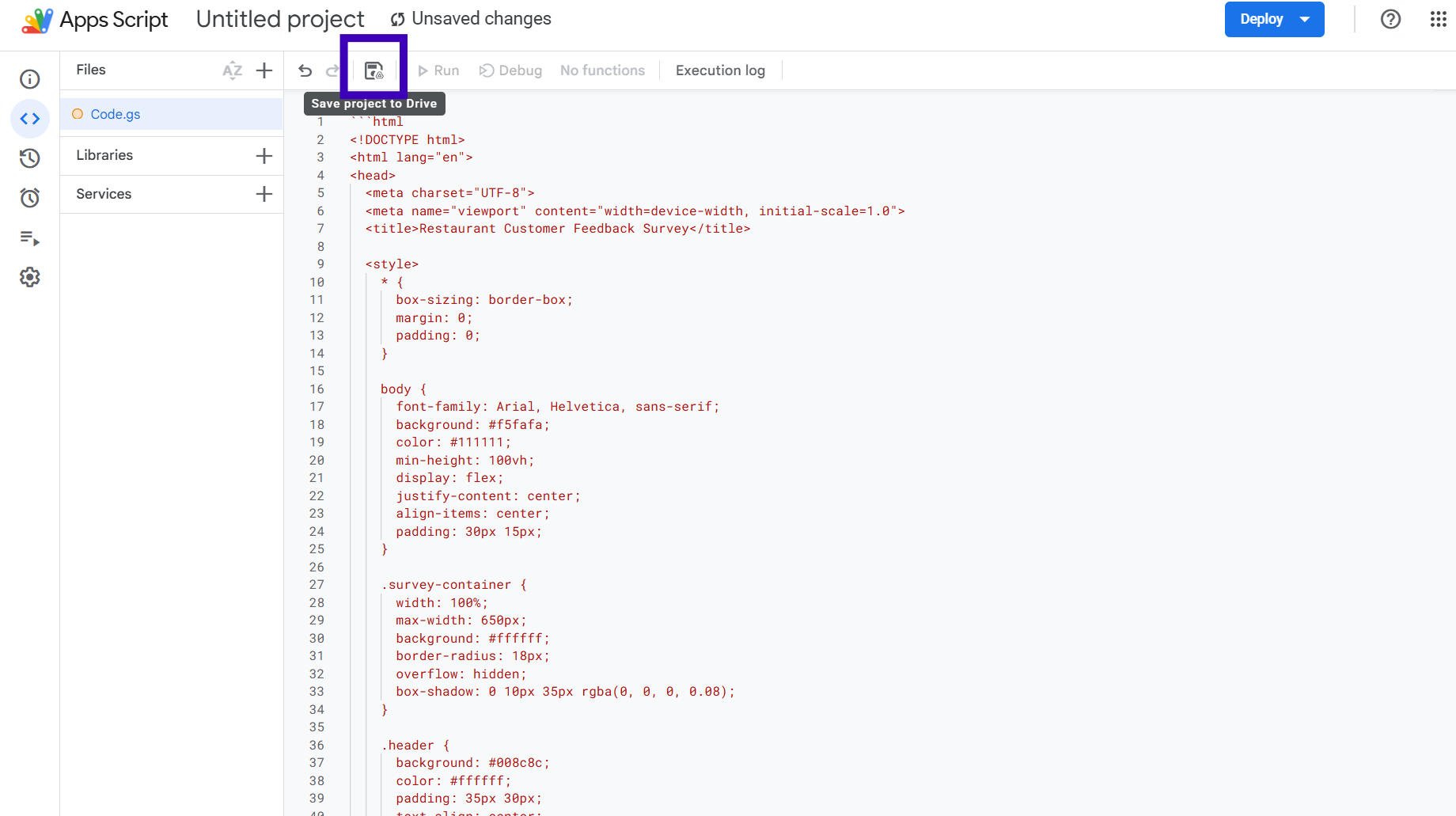
Then copy the complete Apps Script code generated by ChatGPT and paste it into the editor.
Step 6: Save the Code
After pasting the code, click the Save icon at the top of the Apps Script editor.
Make sure the code has been pasted completely before running it.
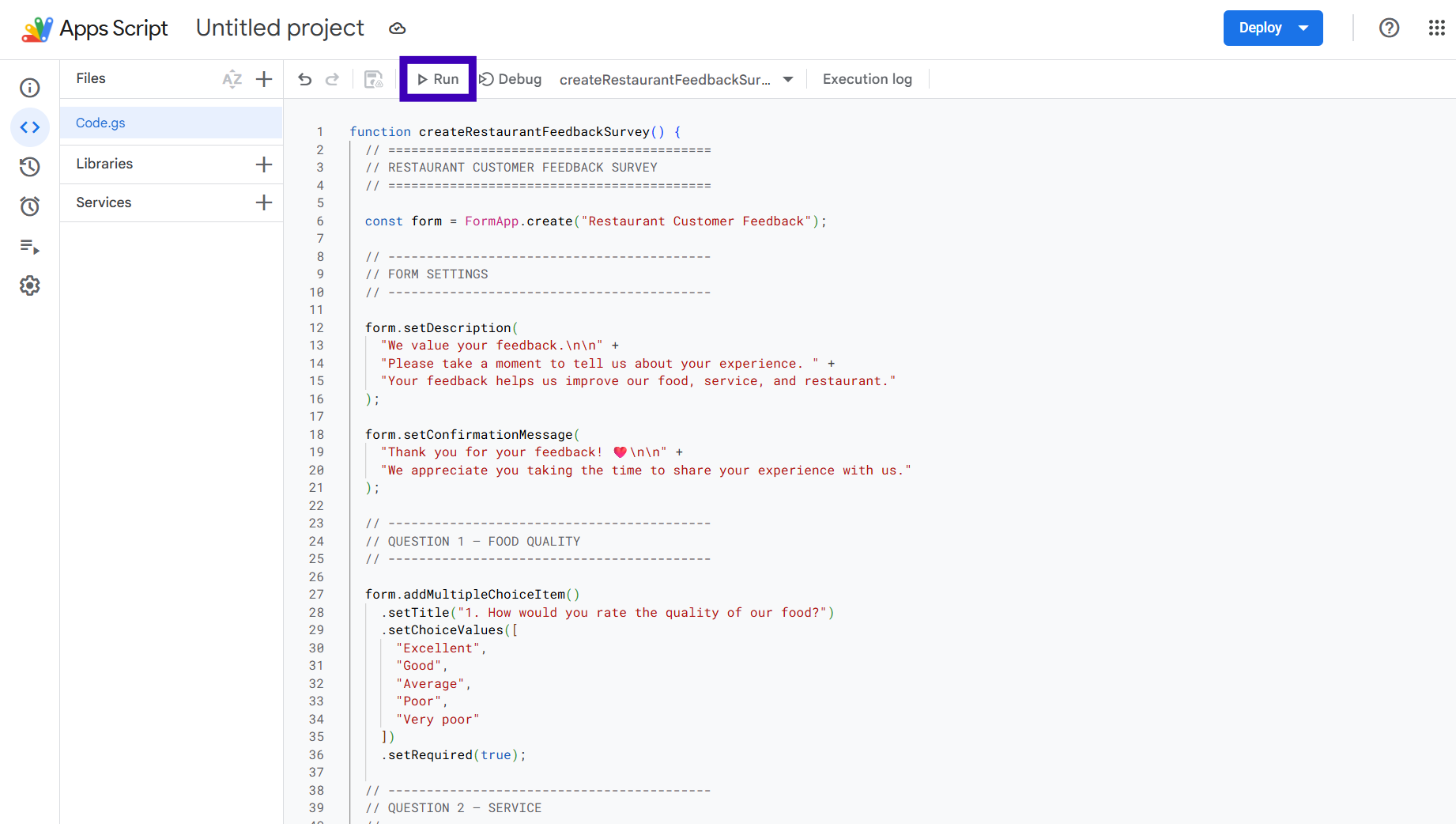
If ChatGPT generated a function with a specific name, check that function is selected in the function dropdown before clicking Run.
Step 7: Run the Script
Click the Run button at the top.
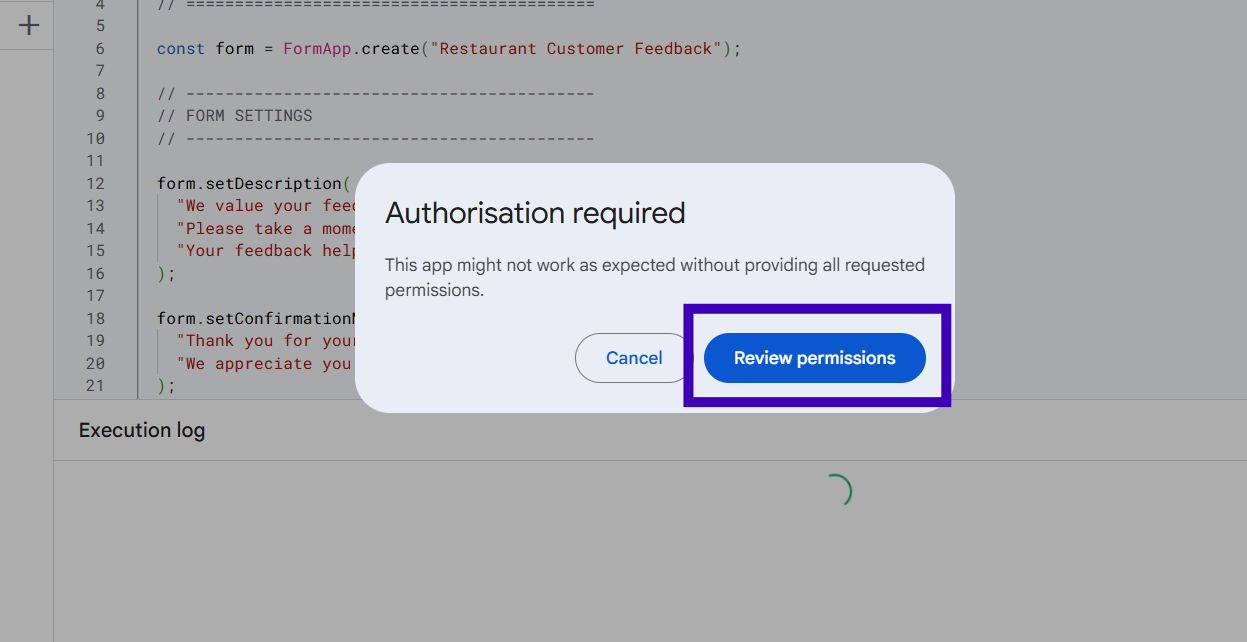
The first time you run a script that creates or changes a Google Form, Google may ask you to authorize it.
You will see a permission message asking you to review the permissions.
Click Review permissions.
Step 8: Give Google Apps Script Permission
Select the Google account you want to use with the script.
Google may show a warning because the Apps Script project was created by you rather than a verified application.
Review the permissions and continue if you trust the code you pasted.
The script needs permission to create or modify the Google Form.
After authorization, run the script again if necessary.
Step 9: Check the Execution Result
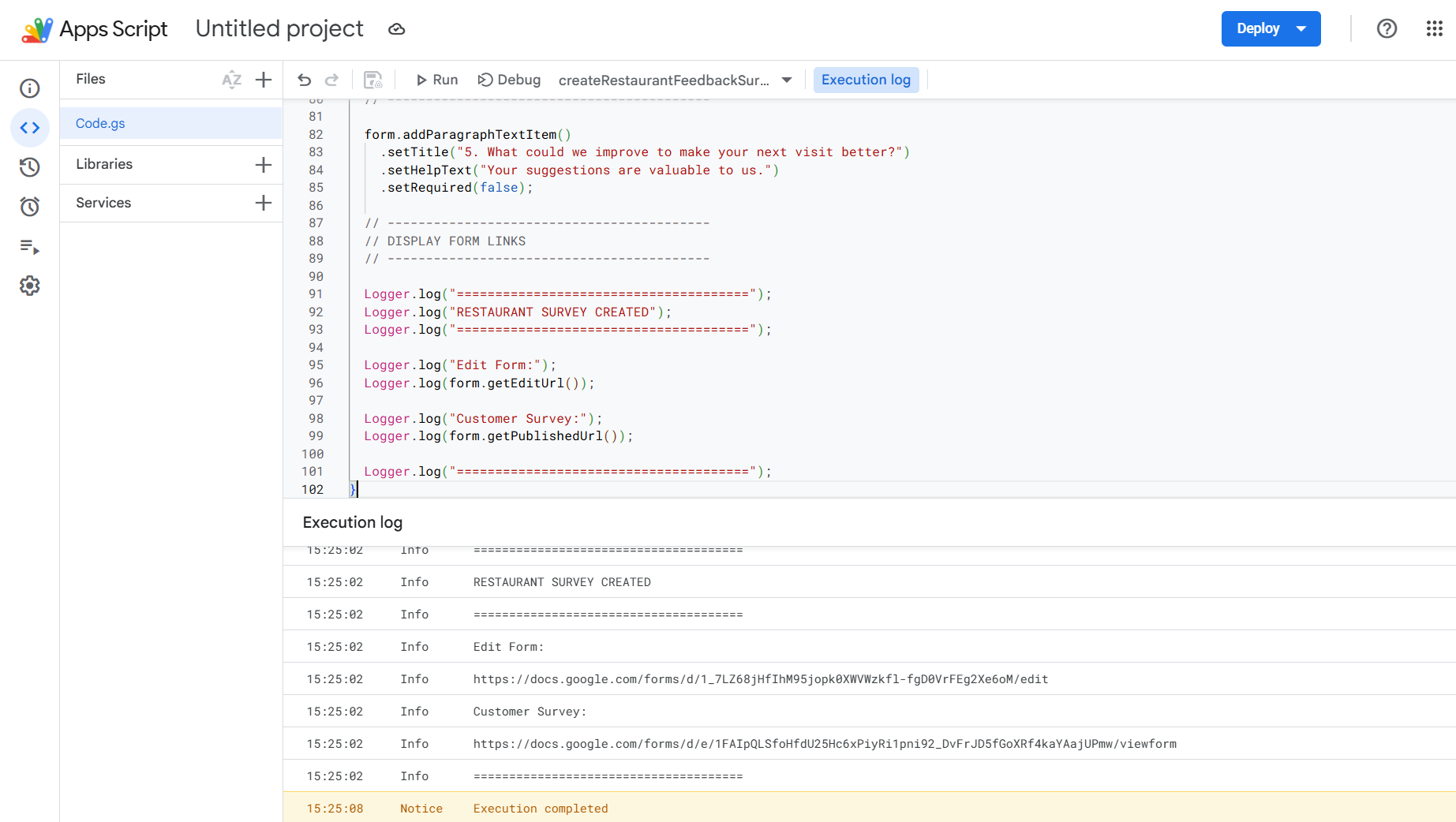
Once the script finishes, look at the Execution log at the bottom of Apps Script.
If everything worked correctly, you should see a message showing that the execution has completed.
If the script was written to display the form links, the execution log may also show the edit URL and the published form URL.
This makes it easy to find the form created by your code.
Step 10: Go Back to Google Forms
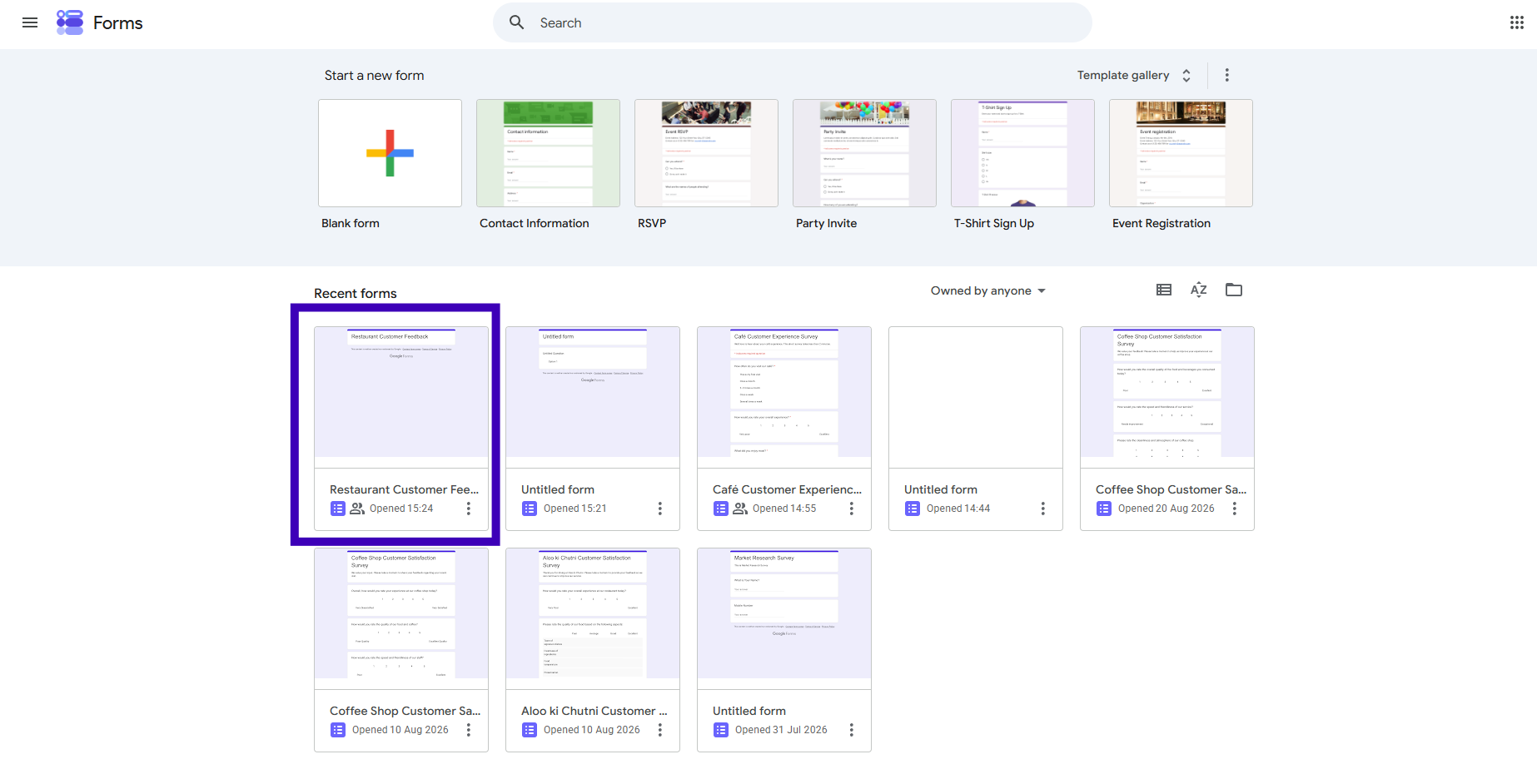
Now return to Google Forms.
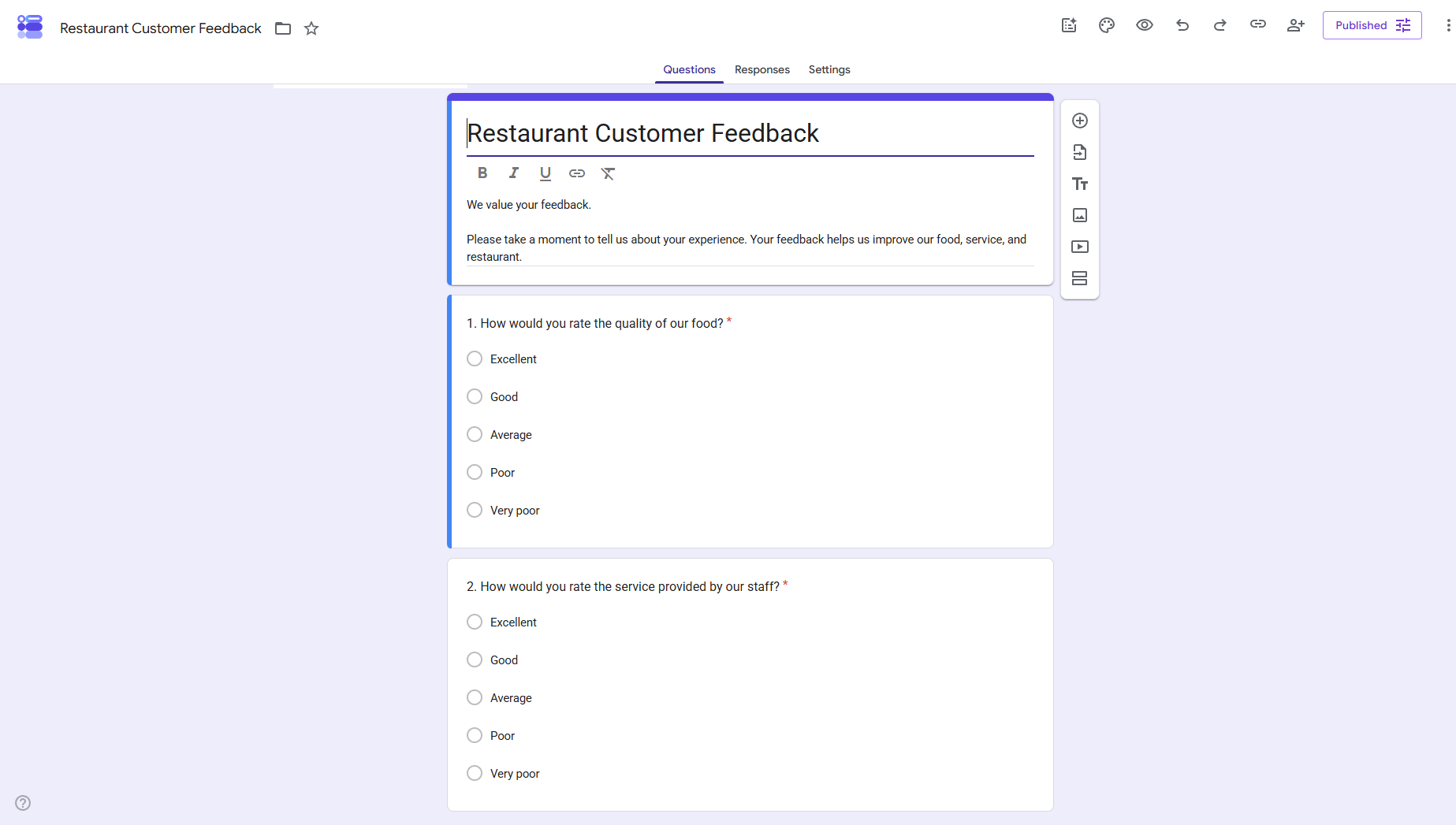
You should see the form created by your Apps Script.
In the example workflow, the script creates a Restaurant Customer Feedback form with questions about food quality, service, and other parts of the customer experience.
You can open the form and make any changes you want.
You can also change the theme, review the settings, connect responses to Google Sheets, and publish or share the form.
You can also change the theme, review the settings, connect responses to Google Sheets, and publish or share the form.
What Can You Create With Google Apps Script?
Once you understand this process, you can use ChatGPT to generate code for many types of Google Forms.
For example:
• Customer feedback surveys
• Registration forms
• Employee feedback forms
• Event registration forms
• Lead forms
• Product research surveys
• Customer satisfaction surveys
You can describe the purpose of the form, the number of questions, the question types, and the information you want to collect.
ChatGPT can then create the initial Apps Script structure for you.
What If You Don't Want to Write or Run Code?
If working with Apps Script feels complicated, you can use an AI form builder instead.
With an AI form builder such as Simplagents, you can describe the form you want to create and let AI generate the form structure for you. You can then customize the questions and publish the finished form without working inside the Apps Script editor.
This can be a simpler option if your main goal is to create a form quickly and you don't need the flexibility of writing your own script.
What form would you like to create?
Describe your idea and AI will generate and configure the perfect form.
The Simple Workflow
The entire process can be summarized as:
Create a Google Form → Open Apps Script → Ask ChatGPT for code → Paste the code → Save → Run → Give permission → Check the result → Open your completed form
Using ChatGPT for the coding part can save time, especially when you need a form with several questions and specific answer options.
You still need to review the generated code and the finished form before sharing it. Make sure the questions, permissions, and collected information match what you actually need